¶ Getting Started
Standalone Training Guide
Version: 20260605
This guide is the starting point for new AssetTrack users. It covers how to log in, how to move around the platform, and the basic list and form controls used throughout the application.
¶ Contents
¶ Logging In
¶ Desktop
Using Edge, Chrome, or Safari, navigate to the instance URL provided to you in your onboarding email.
- In the Login ID field, enter the login ID provided to you by secure email.
- Select Login.
- In the Password field, enter the password provided to you by secure email.
¶ Mobile
AssetTrack mobile app icon.
Mobile apps are available through their respective app stores. The Android app is available as AssetTrack from AMITracks. iOS access may be provided through beta or release instructions from your AMITracks contact, depending on availability.
- Launch the AssetTrack or Platform Alpha mobile app.
- In Select Server, enter your instance URL. This is a one-time setup step and will automatically populate the next time you log in.
- Enter your Login ID and select Login.
- Enter your password to finish logging in.
Tip
The same core concepts apply on desktop and mobile, but mobile workflows may use the camera or barcode scanner more frequently.
¶ Navigating AssetTrack
AssetTrack runs on the AMITracks Platform. The left navigation menu is the main way to move between application areas. Menu items open pages, lists, reports, and display-form workflows. Click menu items or type in the Menu Search box to navigate to new pages.
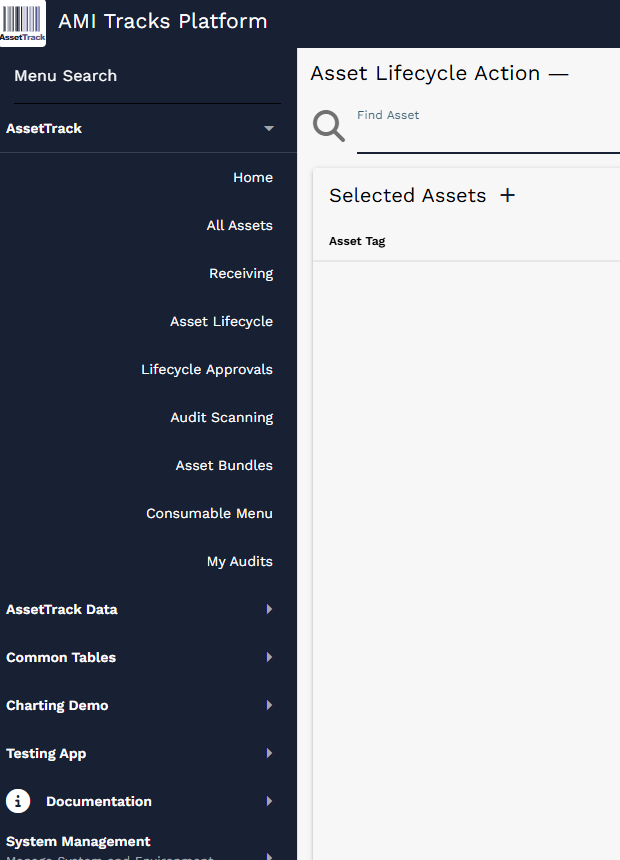
AssetTrack platform shell showing the left navigation menu and a display form workspace.
¶ Common Navigation Areas
- Home: opens the landing page or dashboard for the user.
- All Assets: opens the Asset record list.
- Receiving: opens receiving workflows.
- Asset Lifecycle: opens the Asset Lifecycle Action workflow.
- Lifecycle Approvals: opens the manager approval workflow for lifecycle events waiting for review.
- Audit Scanning: opens the audit performance workflow.
- Consumable Menu: opens the consumable quantity update workflow.
- AssetTrack Data: opens configuration and data lists such as Assets, Audits, Lifecycle records, Receiving records, Consumables, and reports.
¶ Dashboards as Landing Pages
Dashboards serve as landing pages for the platform. A user can change the dashboard they see on login by opening user settings and changing their Default Dashboard. Dashboard details are covered in the separate Dashboards guide.
¶ List Basics
A record list is a table of records. Lists are used throughout AssetTrack for assets, audits, lifecycle events, consumables, configuration records, and embedded related records on forms.
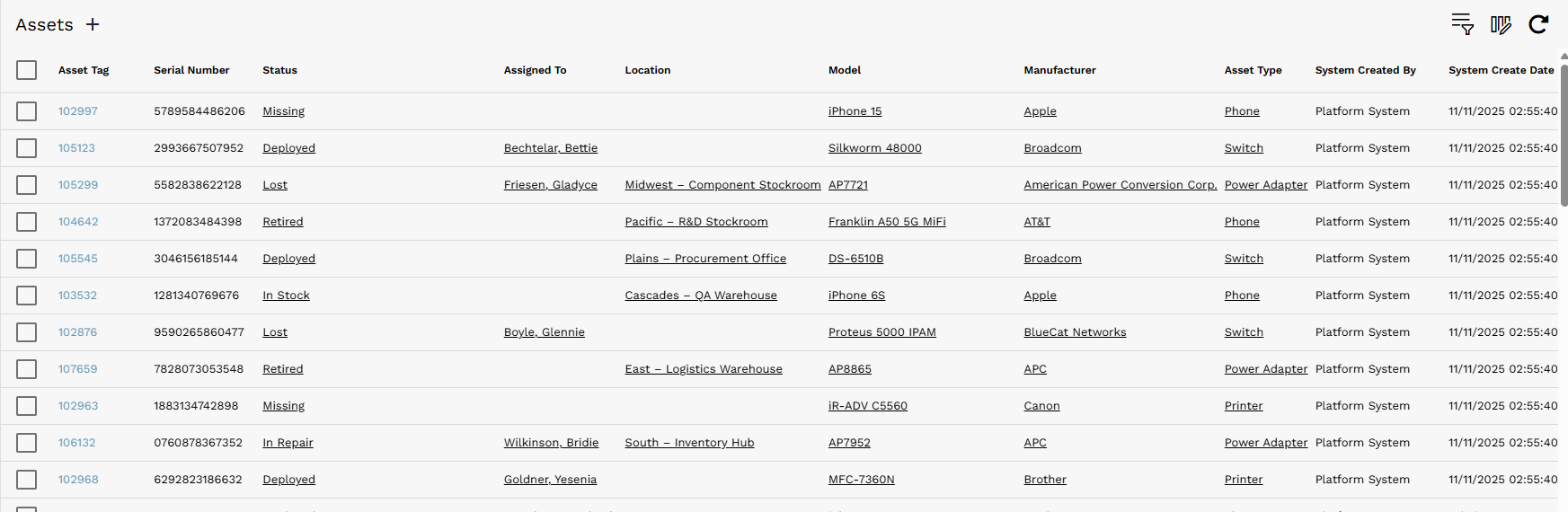
Example record list showing selectable rows, linked records, sortable columns, list tools, and pagination.
¶ Common List Controls
| Control | What it does |
|---|---|
| Check box column | Select one or more records so actions such as delete or bulk edit become available. |
| Create New / plus | Create a new record when permissions allow. |
| Bulk edit / pencil | Edit selected records in bulk. |
| Delete / trash | Delete selected records when permissions allow. |
| Column header arrow | Sort quickly in ascending or descending order. |
| Right-click column header | Open a context menu for group by, sort, or database information. |
| Query Builder | Filter records by selecting a field, operator, and value. AND, OR, and OR groups can refine the filter. |
| Column Selector | Choose which fields appear in the list and reorder selected columns. |
| Refresh | Reload the list to show current data. |
| Pagination | Move between pages when a list contains more records than can be displayed at once. |
List behavior
Linked or underlined values usually open the related record. Selecting the first column of a row often opens the record itself.
¶ Filtering and Column Selection
The Query Builder and Column Selector are two of the most common list tools. Use Query Builder when you want to narrow the records shown. Use Column Selector when you want to change which fields are visible in the list view.
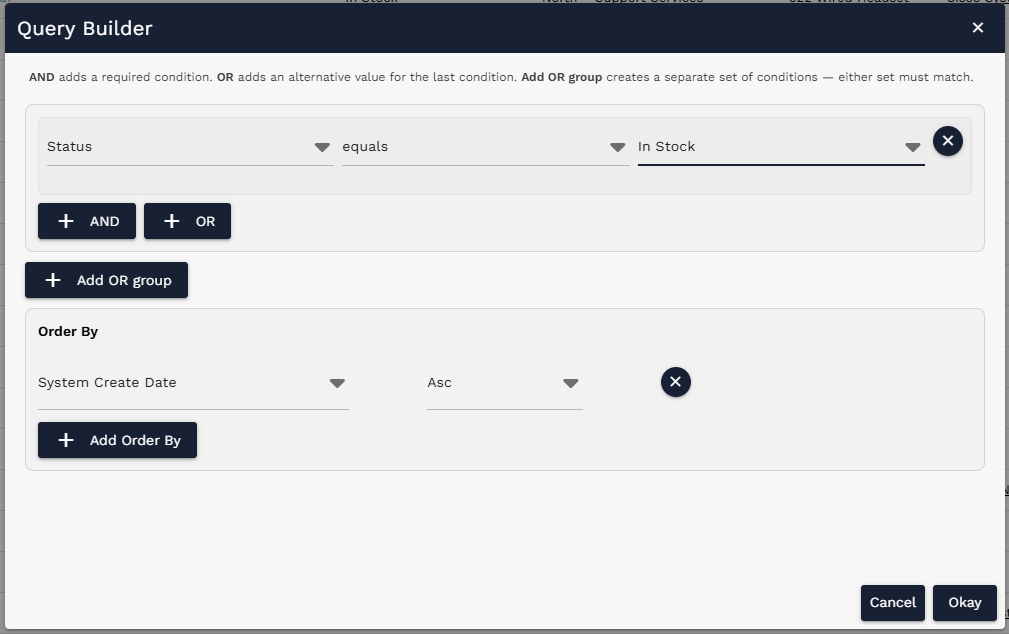
Query Builder example.
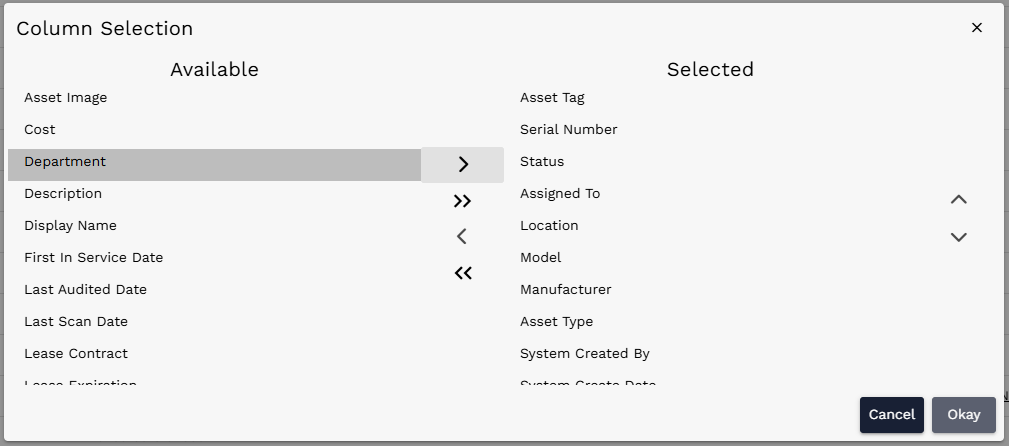
Column Selector example.
¶ Form Basics
Forms are used to view, update, and interact with information in AssetTrack. The platform primarily uses regular forms and display forms.
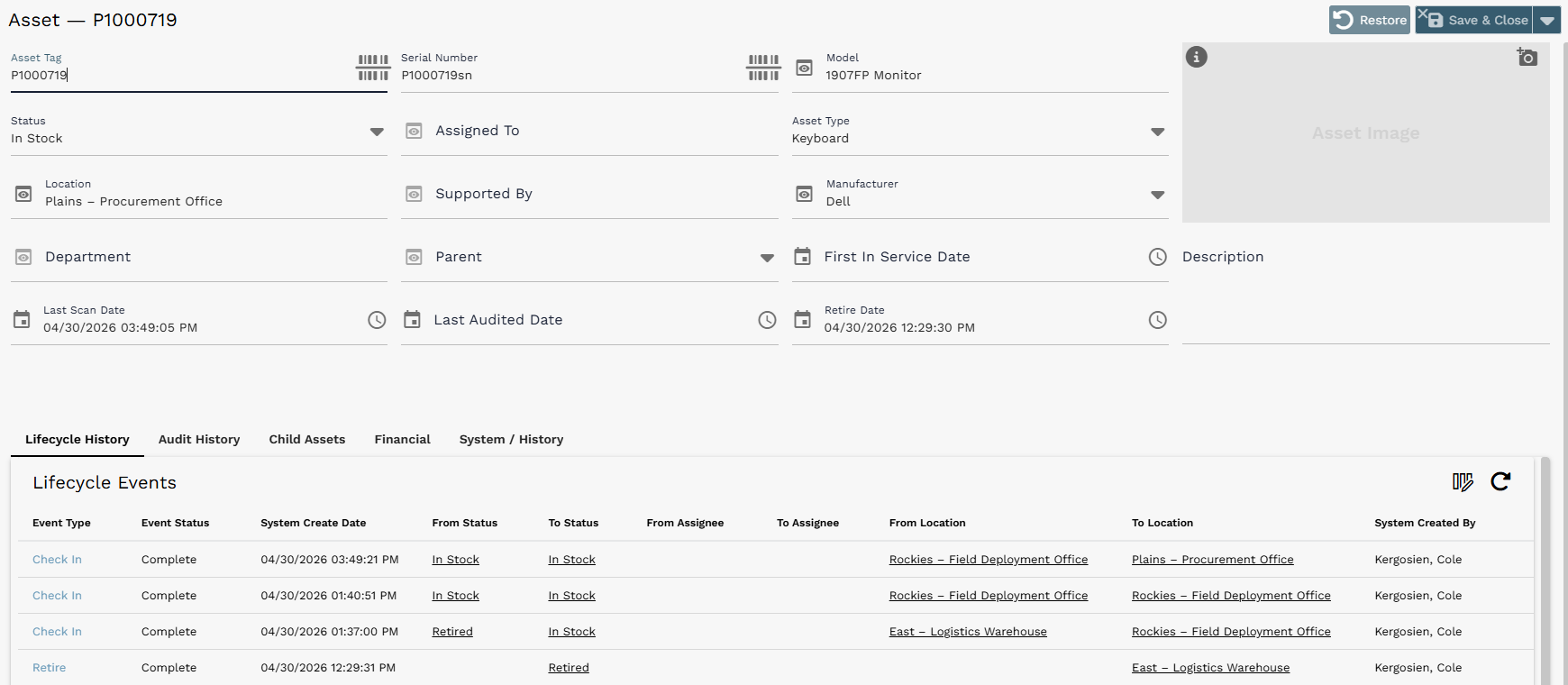
Example regular form showing fields, Save controls, tabs, and an embedded related-record list.
¶ Regular Forms and Display Forms
- Regular forms represent persistent records stored on tables. Examples include Assets, Models, Audit Definitions, Audits, and Consumables. These records can be opened later, updated, saved, and sometimes deleted.
- Display forms are interactive interfaces used to run workflows, update other records, or trigger actions. Examples include Asset Lifecycle Action, Consumable Menu, and Audit Scanning. Display forms usually do not have Restore, Save, or Save & Close buttons because the page itself is not the record being saved.
¶ Common Form Controls
- Restore removes changes that have not been saved.
- Save saves changes while keeping the form open.
- Save & Close saves changes and returns to the previous page or list.
- A downward arrow expands select or reference field options. Typing an underscore (
_) can also expand available options in many fields. - An eye icon next to a reference field opens a preview of the selected record.
- Calendar and clock icons on date-time fields help users select dates and times.
- Tabs at the bottom of a form switch between sections such as Lifecycle History, Audit History, Financial, and System / History.
- Embedded lists on forms show related records and support normal list controls such as query, sort, refresh, and column selection.
¶ Where to Go Next
This guide is intended to be the short starting point. Use the smaller workflow guides below when users need detailed step-by-step instructions.
| Guide | Use it for |
|---|---|
| Lists, Records, and Fields Guide | Detailed list actions, Query Builder, Column Selector, field behavior, and form examples. |
| Asset Lifecycle Guide | Check In, Check Out, Move, Retire, selected assets, and lifecycle history. |
| Receiving Guide | Advanced Receiving, receiving locations, bulk fields, scanning received items, submitting, and verifying created assets. |
| Purchase Orders Guide | Creating purchase orders, PO Lines, PO Line Items, receiving against purchase orders, unexpected items, and completing POs. |
| Consumables Guide | Consumable Menu, quantity updates, stock levels, and consumables during lifecycle actions. |
| Audits Guide | Generating audits, starting audits, performing audits, audit item statuses, rogue/unexpected/not found behavior. |
| Self Certification Guide | Self Certification audits, confirming assigned assets, adding missing assets, completing self audits, and reviewing results. |
| Dashboards Guide | AssetTrack Manager, AssetTrack User, Self Certification, chart interaction, and dashboard defaults. |
| Approvals Guide | Lifecycle approvals, batch approve/reject, individual event review, and approval configuration. |
| Configurations Guide | AssetTrack configuration records, safe editing rules, lifecycle approval settings, dashboard thresholds, audit rules, and notifications. |