¶ Self Certification (Audit)
Standalone Training Guide
Version: 20260708
This guide explains how to generate and perform Self Certification audits in AssetTrack. Self Certification lets employees confirm assets that are deployed to them, even when those employees are remote or do not work directly in a stockroom.
¶ Contents
- Self Certification Overview
- Generating Self Certification Audits
- Starting Generated Self Certifications
- Opening the Self Certification Dashboard
- Confirming Assets You Have
- Adding Assets Missing from the List
- Completing the Self Certification
- What Happens After Completion
- Quick Reference
Related guide: This guide focuses specifically on Self Certification. General audit generation and full stockroom audit scanning are covered in the AssetTrack - Audits guide.
¶ Self Certification Overview
Self Certification is a way to perform audits on assets that are deployed to people rather than sitting in a stockroom. This workflow allows normal employees to help keep asset data accurate by confirming which assets they currently have in their possession.
Self Certification is especially useful for remote workers or employees who rarely interact directly with the asset management team. Instead of requiring the asset team to physically locate every deployed item, the assigned user can confirm their own assets through a dashboard-driven self audit.
| Topic | Self Certification Behavior |
|---|---|
| Purpose | Confirm assets that are deployed to people rather than stored in stockrooms. |
| Primary user | The employee or assignee who has the assets. |
| Manager / asset team role | Generate self certification audits, monitor results, and review rogue or missing data as needed. |
| Typical audit type | Assigned To. |
| Assignee type | Self Certification. |
User reminder: Self Certification is still an audit. Users should only confirm assets they actually have in their possession. Anything not confirmed may be marked Not Found when the audit is completed.
¶ Generating Self Certification Audits
Self Certification audits are generated from Audit Definitions. The process is similar to normal audit generation, but there are two key differences: Audit Type must be Assigned To, and Assignee Type must be Self-certification.
Navigate to AssetTrack Data > Audit > Audit Definitions, then either select an existing definition or create a new one. For this example, the definition is named Self Cert Example.
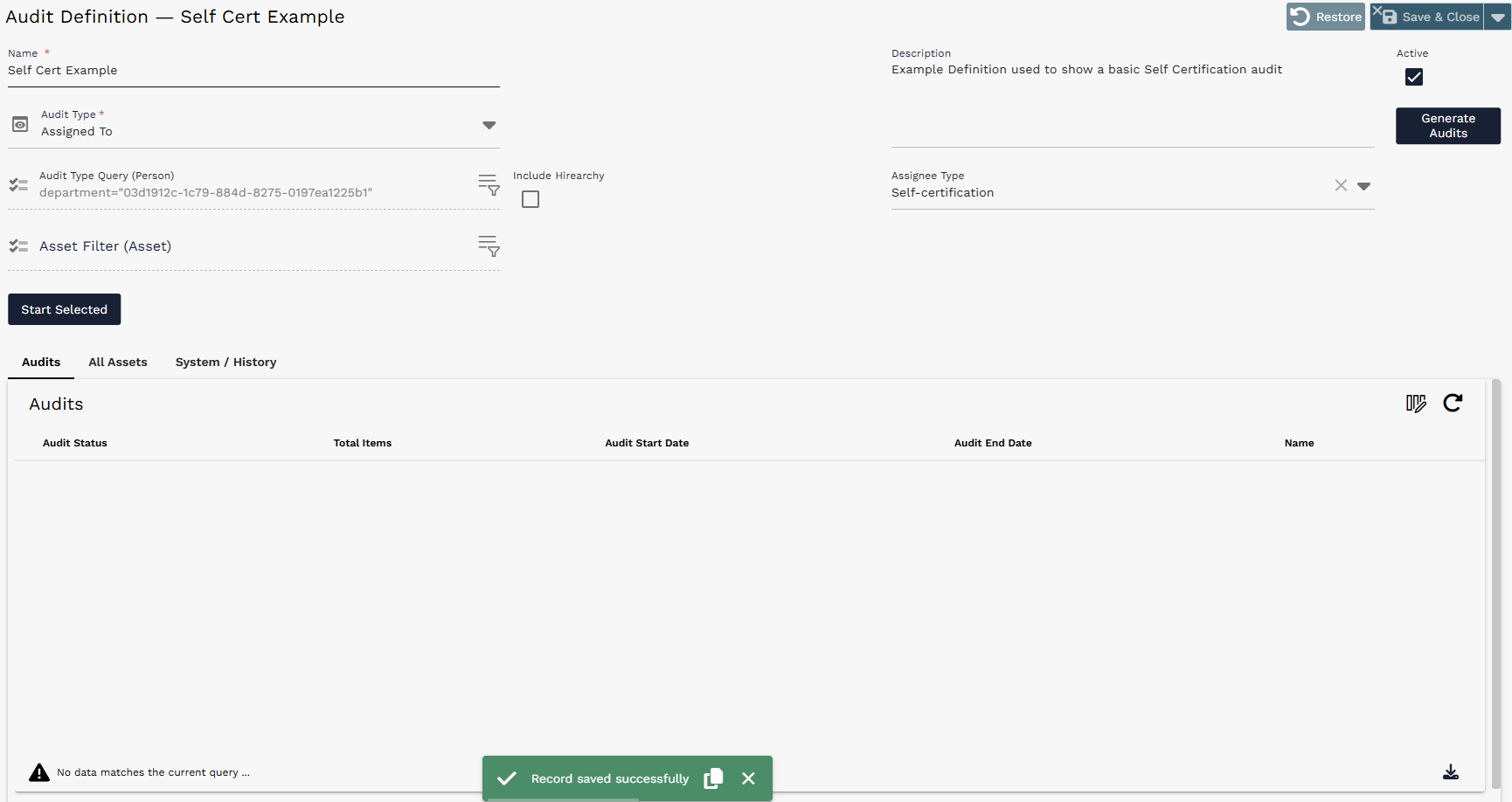
Audit Definition configured for Self Certification with Audit Type set to Assigned To and Assignee Type set to Self-certification.
¶ Key Self Certification Definition Fields
| Field | How to use it |
|---|---|
| Name | A clear definition name. The generated audit names include this value. |
| Audit Type | Set to Assigned To. This tells AssetTrack the audit is based on assigned users. |
| Audit Type Query (Person) | Optional filter for which people should receive self certification audits. |
| Asset Filter (Asset) | Optional filter for which assets should be included. |
| Assignee Type | Set to Self-certification. |
| Description | Optional context for the audit definition. |
¶ Optional Person Filtering
Use the Audit Type Query (Person) filter when you only want to generate Self Certifications for specific people. In this example, the query filters to three people by Full Name, so only those three self certification audits are generated.
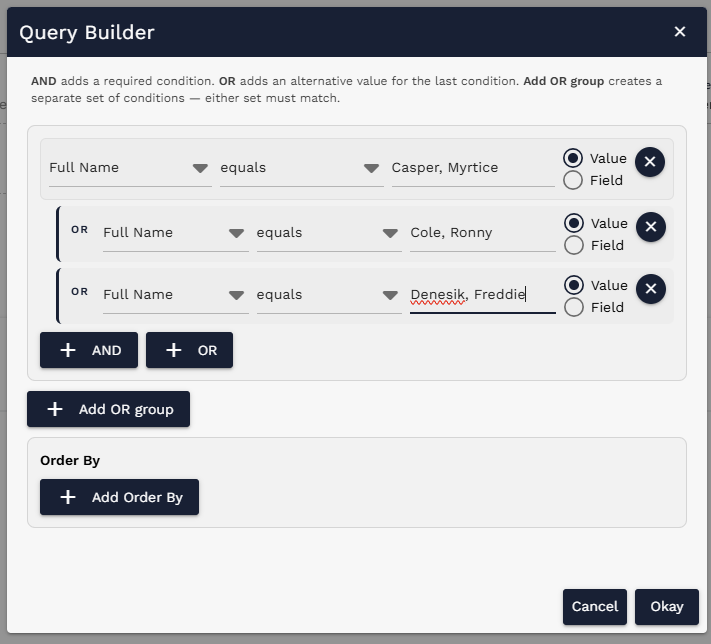
Query Builder filtering Self Certification generation to three people.
Once the definition is saved and the criteria are correct, select Generate Audits. The generated self certification audits appear in the Audits list below the definition.

Generate Audits button.
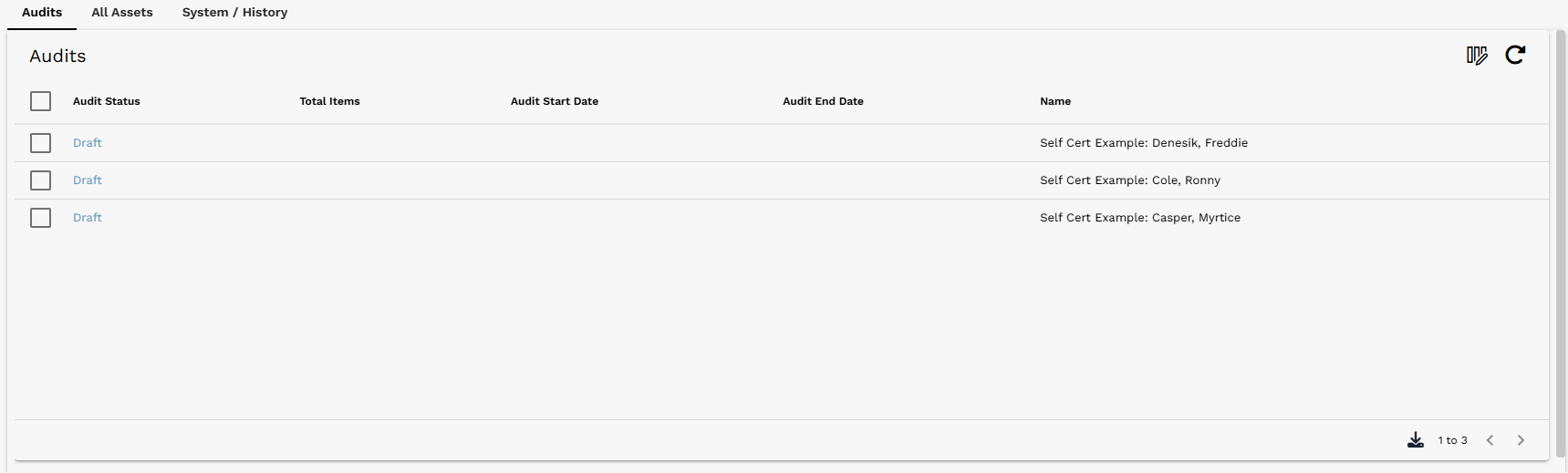
Generated Self Certification audits in Draft status.
¶ Starting Generated Self Certifications
Generated Self Certification audits must be started before users can perform them. Select the generated audits in the Audits list, then use Start Selected. Starting an audit moves it from Draft to In Progress and makes it available to the assigned user.
Status requirement: Only In Progress Self Certification audits can be performed by users. Draft audits remain generated but unavailable for completion until started.
¶ Opening the Self Certification Dashboard
Self Certification is performed from a dashboard. Some users may land on it immediately after login if Self Certification is their default dashboard. Other users can open it with the dashboard picker or by navigating to AssetTrack > My Audits.
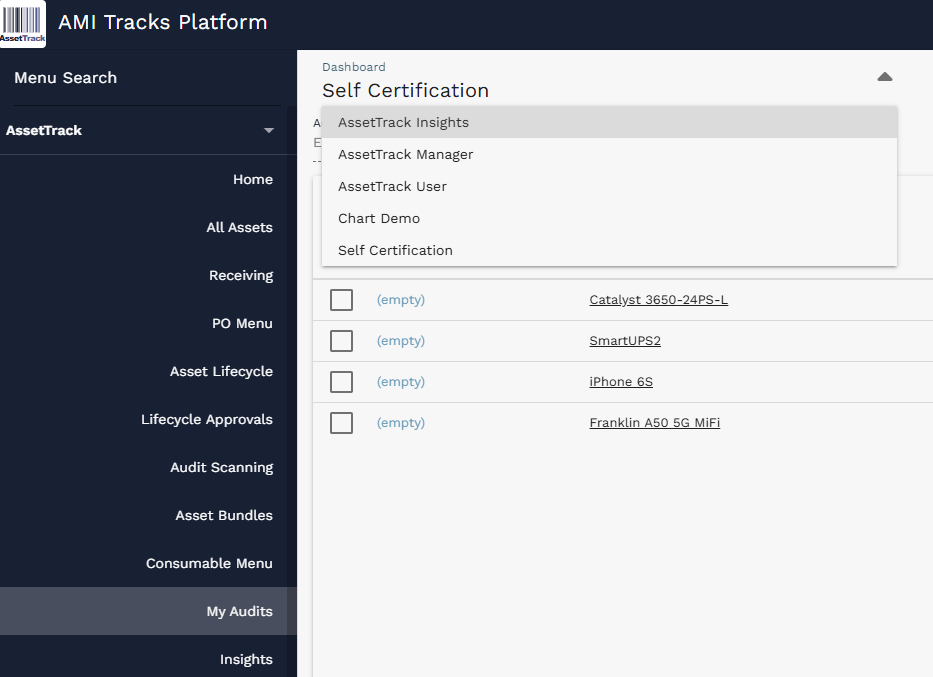
Dashboard picker showing Self Certification as an available dashboard option.
If the user has an available Self Certification audit, the audit loads into the dashboard and the related Audit Items appear in the Audit Items list. Each row represents an asset that AssetTrack expects the user to have.
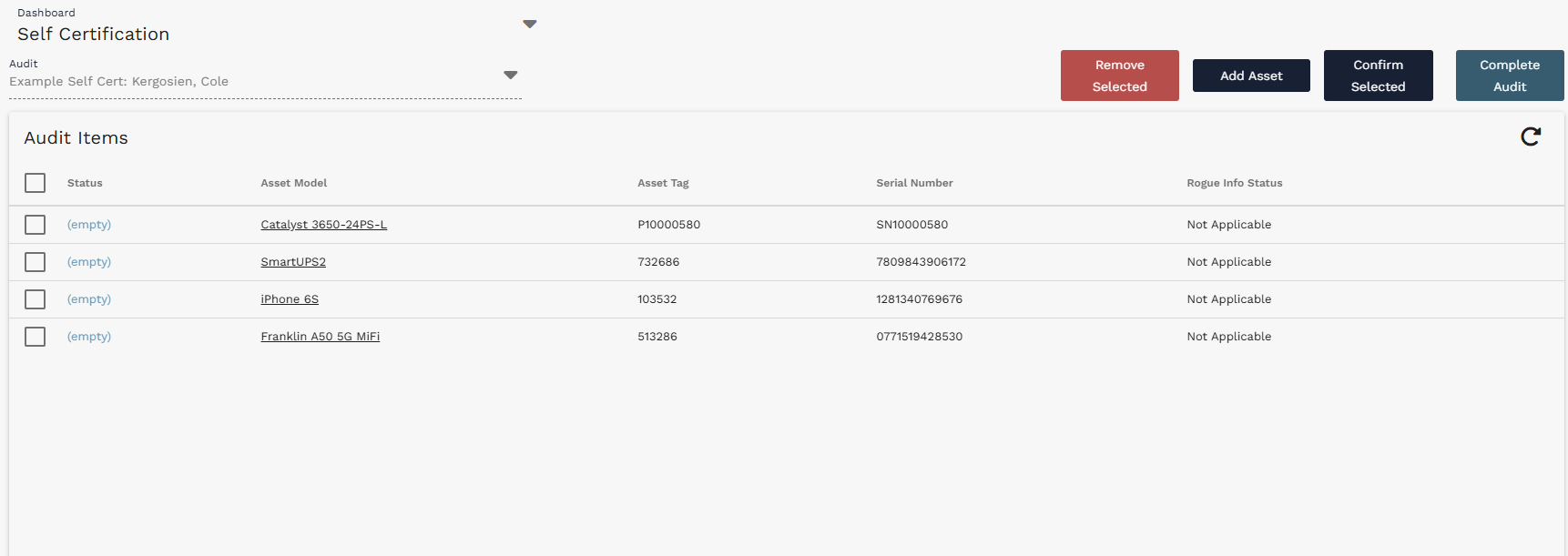
Self Certification dashboard with an audit selected and expected assets loaded into the Audit Items list.
¶ Confirming Assets You Have
To perform the self certification, review the Audit Items list and select the check box next to each asset you currently have in your possession. After selecting the applicable rows, click Confirm Selected.
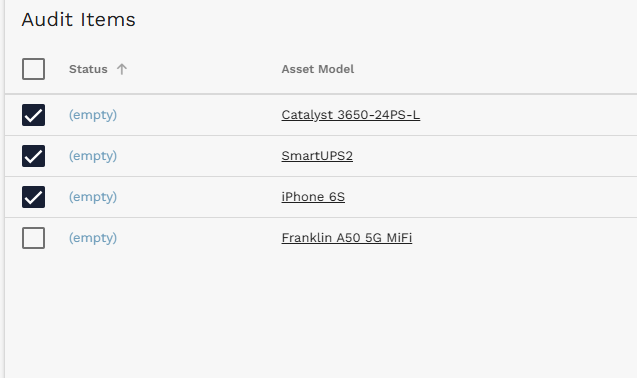
Audit Items selected for confirmation.

Confirm Selected button.
Confirmed assets are marked as Found. This indicates that the user has verified those assets are in their possession as part of the self certification audit.
¶ Adding Assets Missing from the List
If the user has an asset that does not appear in the Audit Items list, use Add Asset. This allows the user to type or scan an Asset Tag or Serial Number and add the item to the self certification.

Add Asset button.
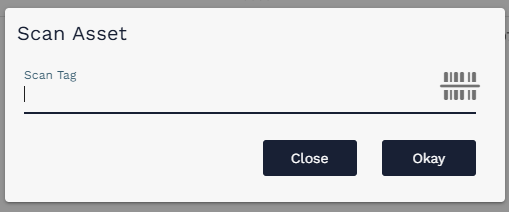
Scan Asset dialog opened from Add Asset.
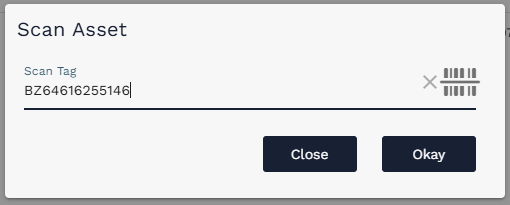
Scan Asset dialog with an Asset Tag or Serial Number entered.
After entering the scan value and selecting Okay, AssetTrack opens a Rogue Asset Info dialog. This is used when the employee reports an asset that AssetTrack did not expect to be part of their self certification. The user can add more information such as Asset Type, Manufacturer, Status, Assigned To, Department, Asset Tag, and Serial Number.
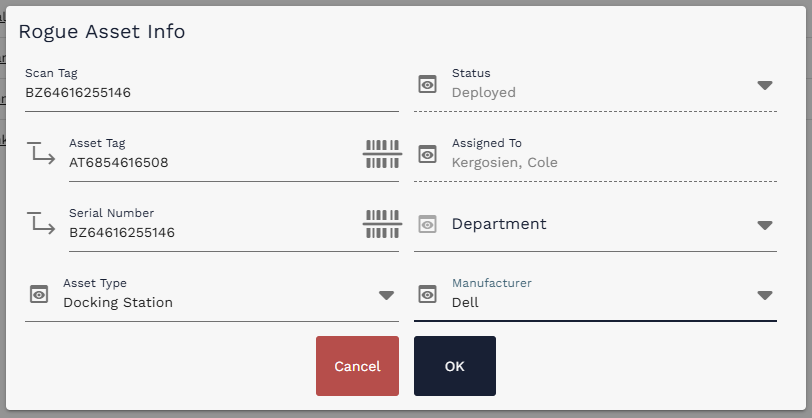
Rogue Asset Info dialog used to provide details for an additional asset found during Self Certification.
After the dialog is completed, the added item appears in the Audit Items list as Rogue with Rogue Info Status = Info Provided. The asset management team can review and address the rogue item after submission.
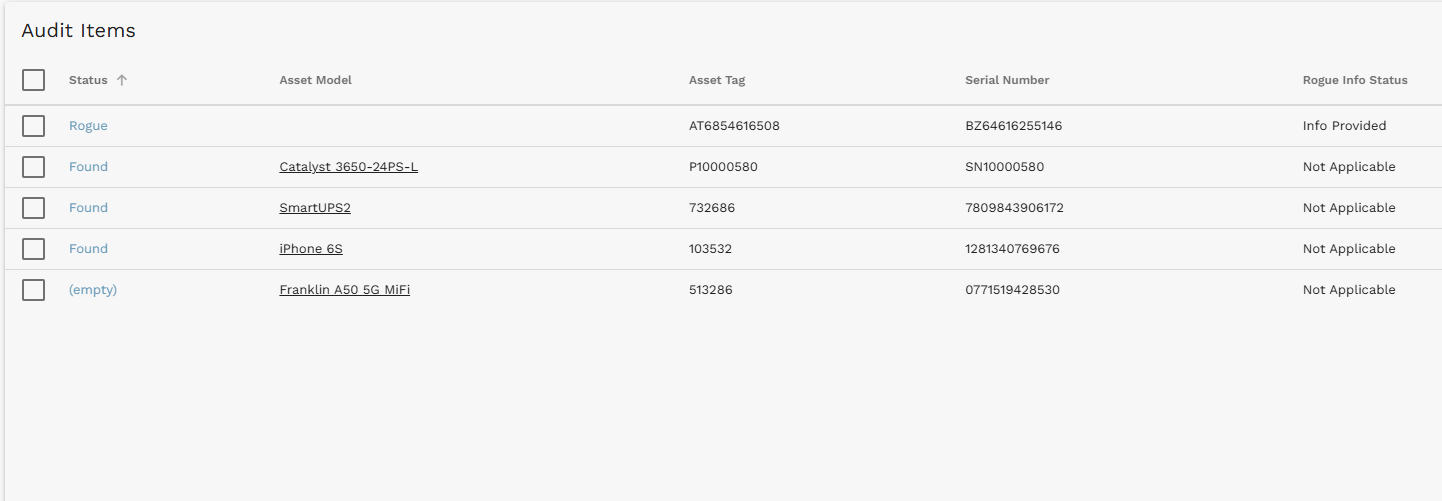
Audit Items list showing a newly added Rogue item and confirmed Found items.
Terminology: Rogue in this context does not necessarily mean the user did anything wrong. It means the user reported an asset that was not expected in the generated audit item list.
¶ Removing Mistakenly Added Assets
If an asset is added by mistake, select the item and use Remove Selected. This removes the mistakenly added item from the working self certification list before completion.
¶ Completing the Self Certification
When the user has confirmed the assets they have and added any additional assets that were missing from the list, click Complete Audit.
Complete Audit button.
After completion, any expected Audit Items that were not selected and confirmed may change to Not Found. This gives the asset management team a clear record of which assigned assets the user did not confirm.
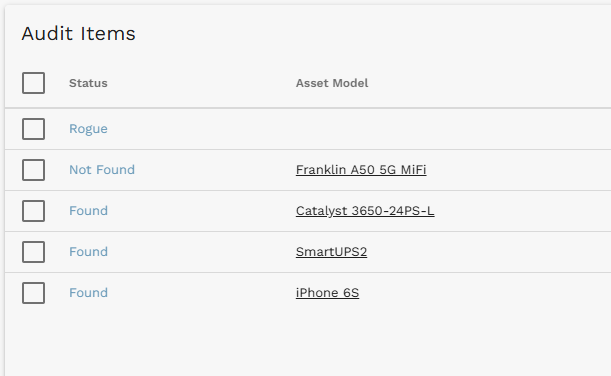
Completed Self Certification results with Found, Rogue, and Not Found audit item statuses.
¶ What Happens After Completion
Completing a Self Certification records the user response and updates the audit item statuses. Found items indicate assets the user confirmed. Not Found items indicate expected assets the user did not confirm. Rogue items indicate assets the user added because they were not originally listed.
Rogue and Not Found results may require follow-up by the asset management team. Depending on AssetTrack Configuration settings, some audit-driven changes may route to Lifecycle Approvals before asset records are updated.
| Result | Meaning |
|---|---|
| Found | The user confirmed that they have the asset. |
| Not Found | The user did not confirm an expected asset before completing the self certification. |
| Rogue | The user reported an additional asset that was not expected in the original list. |
¶ Quick Reference
| Task | Action |
|---|---|
| Generate self certifications | Create or open an Audit Definition, set Audit Type to Assigned To, set Assignee Type to Self-certification, optionally filter people or assets, then Generate Audits. |
| Start generated audits | Select the generated Draft audits and use Start Selected so they become In Progress. |
| Open self certification | Use the Self Certification dashboard or navigate to AssetTrack > My Audits. |
| Confirm assets | Select the check boxes for assets you have, then click Confirm Selected. |
| Add missing asset | Click Add Asset, type or scan the asset identifier, complete Rogue Asset Info, and select OK. |
| Remove mistake | Select the mistakenly added item and use Remove Selected. |
| Finish | Click Complete Audit. Unconfirmed expected assets may become Not Found. |
Final reminder: The self certifier should complete the audit based on what they actually have. Asset management teams can use the resulting Found, Not Found, and Rogue records to clean up asset data after submission.