¶ Consumables
Standalone Training Guide
Version: 20260605
This guide explains how consumables work in AssetTrack, how to update consumable quantities, how to read consumable records, and how consumables can be included during asset lifecycle workflows.
¶ Contents
- Consumables vs. Assets
- Consumable Menu Overview
- Updating Consumable Quantities
- Creating and Opening Consumable Records
- Consumable Record Fields and Stock Levels
- Using Consumables During Asset Lifecycle Actions
- Quick Reference
Related guide: This document focuses only on consumable workflows. General list controls, forms, Query Builder, Column Selector, and embedded list behavior are covered in the Lists, Records, and Forms guide.
¶ Consumables vs. Assets
Consumables are generally lower-cost items that require less effort to track than assets. Consumables are tracked by quantity, type, and location rather than as individually managed records.
Important: Consumables are not tracked individually like assets. AssetTrack does not track who has a specific consumable item. Instead, it tracks how many of a consumable are in stock at each location.
No lifecycle history is tracked for checking consumables in or out. When users update consumables, they are updating the quantity on the consumable record rather than creating asset lifecycle events for each item.
| Topic | Assets | Consumables |
|---|---|---|
| Tracking level | Individual records tracked one item at a time. | Quantity-based records tracked by type and location. |
| Who has it? | Can be assigned to a specific person or location. | Specific user possession is not tracked. |
| Lifecycle history | Lifecycle events show check in, check out, move, retire, and audit-related changes. | No lifecycle is tracked for checking consumables in or out. |
| Typical use | Phones, monitors, switches, printers, and other items worth tracking individually. | Mice, headsets, cables, webcams, mousepads, and other lower-cost inventory. |
¶ Consumable Menu Overview
Users navigate to AssetTrack > Consumable Menu in the left navigator. The Consumable Menu is a display form designed to let users quickly modify consumable quantities.
At the top of the page are fields for Select Consumable and Quantity, plus an Update button. Below those controls is a Filter Location field and a Consumables list showing consumable records. The list supports normal list behavior such as sorting, filtering, refresh, column selection, paging, and opening records.
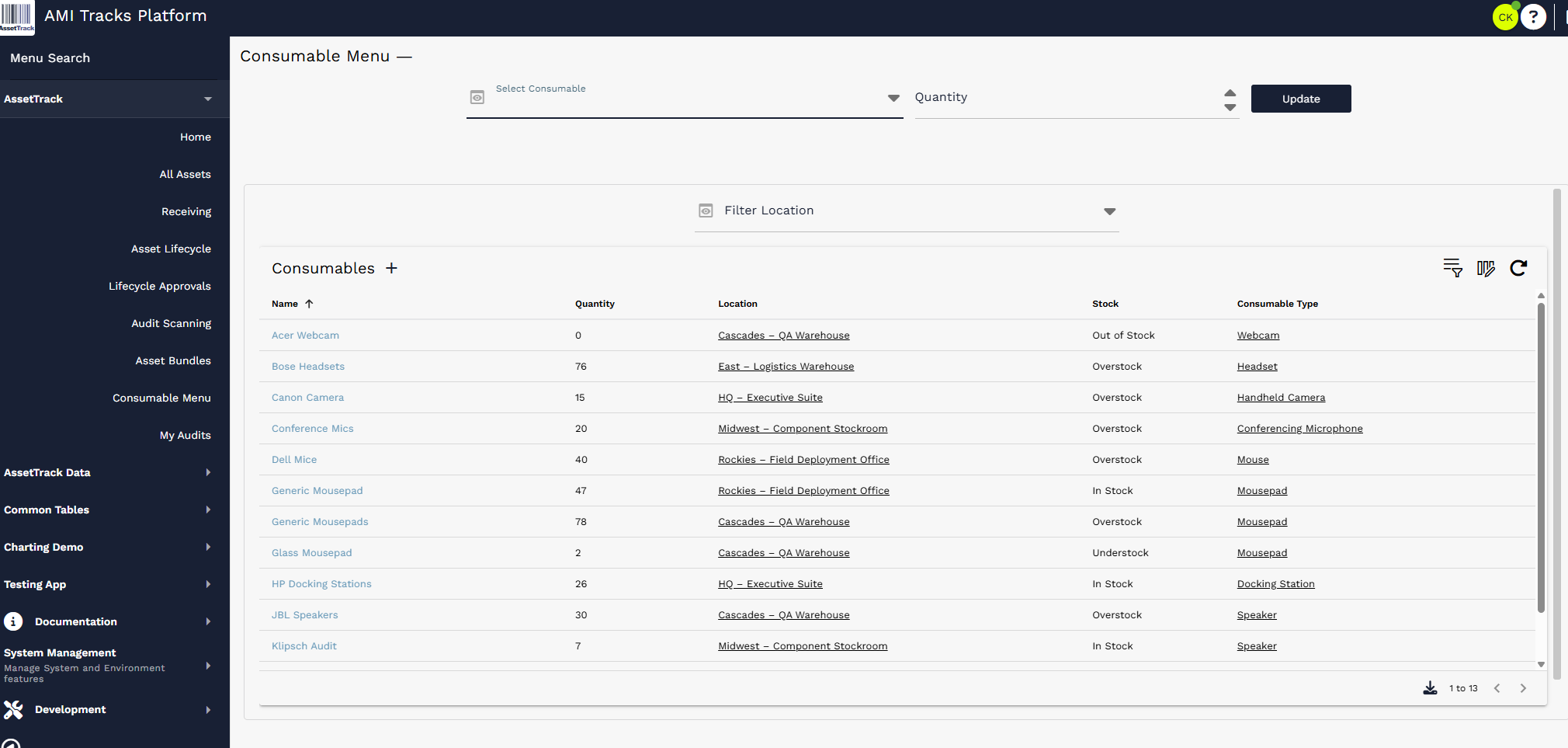
Consumable Menu display form with Select Consumable, Quantity, Update, Filter Location, and the Consumables list.
¶ Updating Consumable Quantities
To update a consumable quantity, choose a consumable record and enter the new quantity to save on that consumable. There are two common ways to populate the fields:
- Use the Select Consumable dropdown to choose a consumable record.
- Select a row in the Consumables list. Selecting a row automatically populates Select Consumable and Quantity with that row's current values.
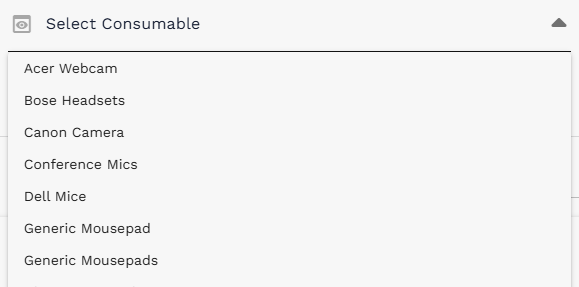
Select Consumable dropdown with available consumable records.
Once a consumable is selected, adjust Quantity by typing a new value or using the up/down arrows on the quantity field. Then select Update to save the new quantity.

Select Consumable populated with HP Docking Stations and Quantity set to 26 before pressing Update.
After the update is processed, AssetTrack displays a confirmation message indicating that the new quantity has been saved to the consumable record.

Confirmation message shown after a consumable quantity is updated.
¶ Creating and Opening Consumable Records
Use the plus icon at the top of the Consumables list to create a new consumable record. To open the detailed view of an existing consumable, select the left-most column of the row or click into the record from the list, depending on the current list configuration and permissions.
List behavior: The Consumables list behaves like other record lists in AssetTrack. Users can filter, sort, choose columns, refresh the list, and page through results when many records are returned.
¶ Consumable Record Fields and Stock Levels
The detailed consumable record contains the fields used to describe and control the consumable. Common fields include Name, Active, Location, Quantity, Stock, Understock Level, Overstock Level, Consumable Type, Description, and Image.
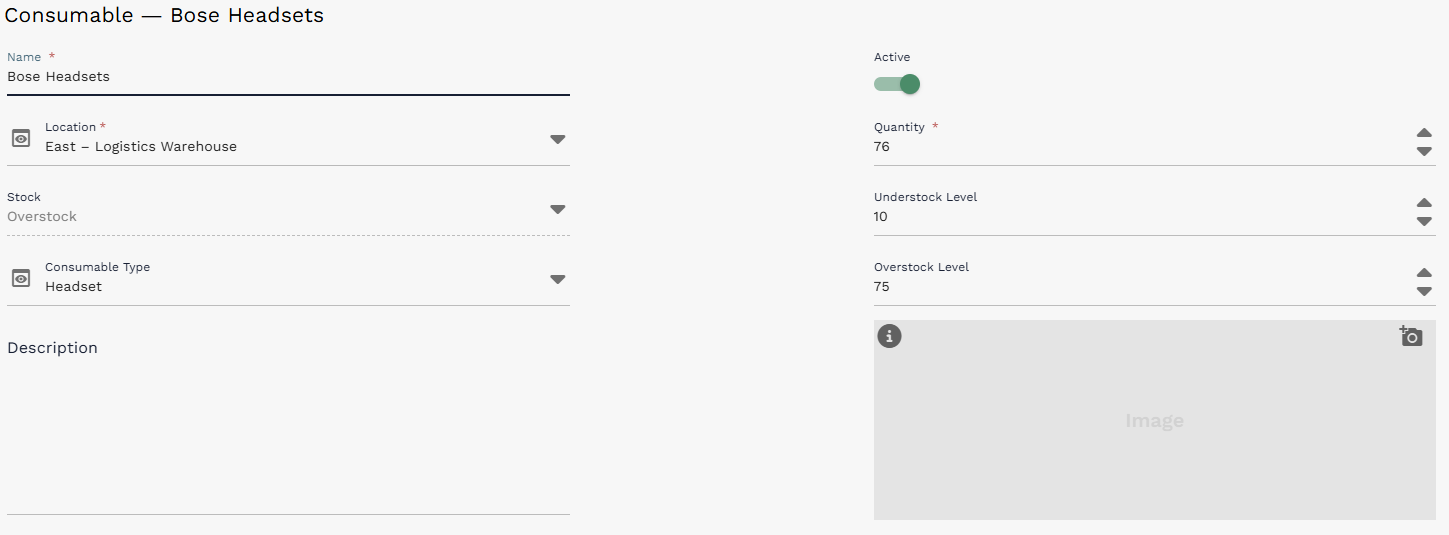
Detailed Consumable record showing name, location, quantity, stock level settings, consumable type, description, and image area.
Consumable Type can be used to group consumables by type, such as Monitor, Headphone, Keyboard, Mouse, Docking Station, Webcam, Cable, or other categories configured in the system.
Stock level logic is available on consumable records. Understock Level and Overstock Level are optional fields that help classify whether the current quantity is low, high, or within the expected range.
| Condition | Stock value |
|---|---|
| Quantity = 0 | Out of Stock |
| Quantity is below the Understock Level | Understock |
| Quantity is above the Overstock Level | Overstock |
| Quantity is between the Understock and Overstock Levels | In Stock |
| Understock and Overstock levels are not configured | Consumables move only between In Stock and Out of Stock based on whether Quantity is greater than zero. |
Stock level note: Understock and Overstock levels are optional. If they are not used, consumables simply show as In Stock or Out of Stock.
¶ Using Consumables During Asset Lifecycle Actions
The Consumable Menu can also be accessed during lifecycle workflows. On Check In and Check Out actions, select Include Consumables to modify consumable quantities at the same time as the asset lifecycle action.
When Include Consumables is turned on, the Consumable Menu opens over the lifecycle action form. Users can select a consumable, optionally filter by location, set the quantity adjustment, and update the consumable without leaving the lifecycle workflow.
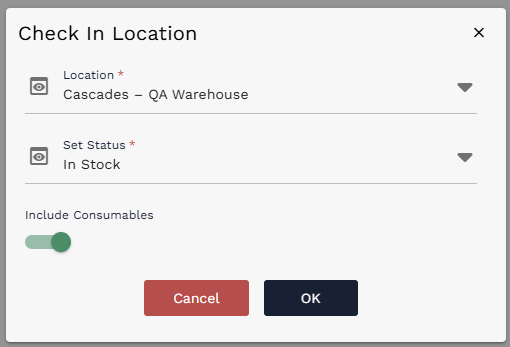
Include Consumables enabled on a Check In lifecycle action.
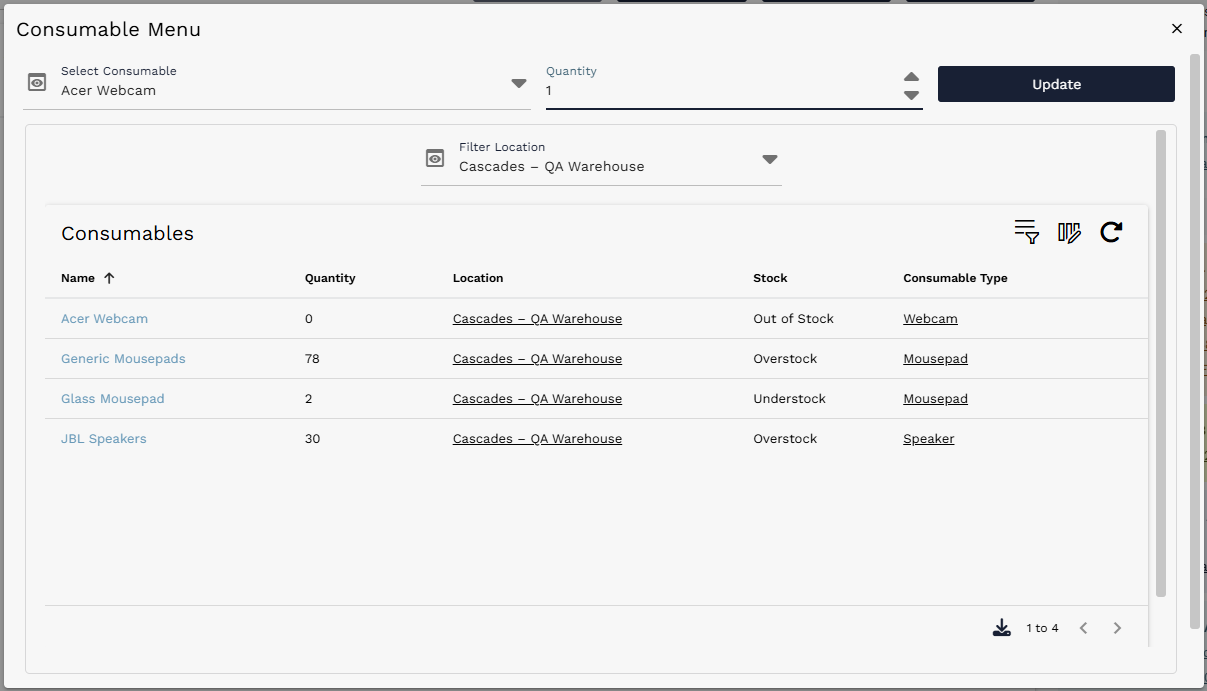
Consumable Menu opened over the lifecycle action form after Include Consumables is selected.
¶ Quick Reference
| Need to... | Use this behavior |
|---|---|
| Open consumables | Navigate to AssetTrack > Consumable Menu. |
| Update a quantity | Select a consumable or click a row, enter the new Quantity, and select Update. |
| Filter by location | Use Filter Location to narrow the consumables shown in the list. |
| Create a consumable | Use the plus icon at the top of the Consumables list. |
| Open a consumable record | Select the left-most column or open the row from the Consumables list. |
| Understand stock | Stock is calculated from Quantity and optional Understock / Overstock levels. |
| Use during lifecycle | Turn on Include Consumables during Check In or Check Out. |
Reminder: Consumable quantity updates are not a substitute for tracking individually managed assets. Items that need serial-level or assignee-level history should be managed as assets instead of consumables.