¶ Audits
Standalone Training Guide
Version: 20260605
This guide explains how to generate, start, perform, and complete audits in AssetTrack. It covers audit definitions, audit type and asset filters, audit items, scanning, rogue assets, unexpected assets, not-found results, and audit-driven lifecycle updates.
¶ Contents
- Audit Overview
- Generating Audits from Audit Definitions
- Starting Generated Audits
- Performing Audits on the Audit Scanning Page
- Audit Items and Audit Item Statuses
- Scanning Expected, Unexpected, and Rogue Assets
- Completing an Audit
- Audit Results, Lifecycle Events, and Approvals
- Quick Reference
Related guide: This guide focuses on audit generation and audit execution. The approval workflow itself is covered in the separate AssetTrack - Approvals guide.
¶ Audit Overview
Audits are used to verify that assets are where AssetTrack expects them to be, assigned to the expected person, or otherwise aligned with the selected audit type. Audit definitions are reusable templates that generate one or more audit records. Those audit records are then started and performed from the Audit Scanning page.
Two common audit types are Location and Assigned To. Location audits are commonly used for stockroom audits. Assigned To audits are commonly used for self certification workflows, which are covered separately.
| Concept | What it does | Example |
|---|---|---|
| Audit Definition | Reusable setup record used to generate audits. | Example Stockroom Audit |
| Audit | A specific audit generated from a definition. | Example Stockroom Audit : South - Inventory Hub |
| Audit Item | A record representing one asset included in or discovered during an audit. | An expected asset scanned and marked Found |
| Audit Scanning | The interface used to select an audit, scan tags, review audit items, and complete the audit. | Audit Scanning page |
¶ Generating Audits from Audit Definitions
Navigate to AssetTrack Data > Audit > Audit Definitions. From this list, users can select an existing definition or create a new one. Audit definitions can be used to generate multiple audits, and definitions can be modified over time as audit needs change.
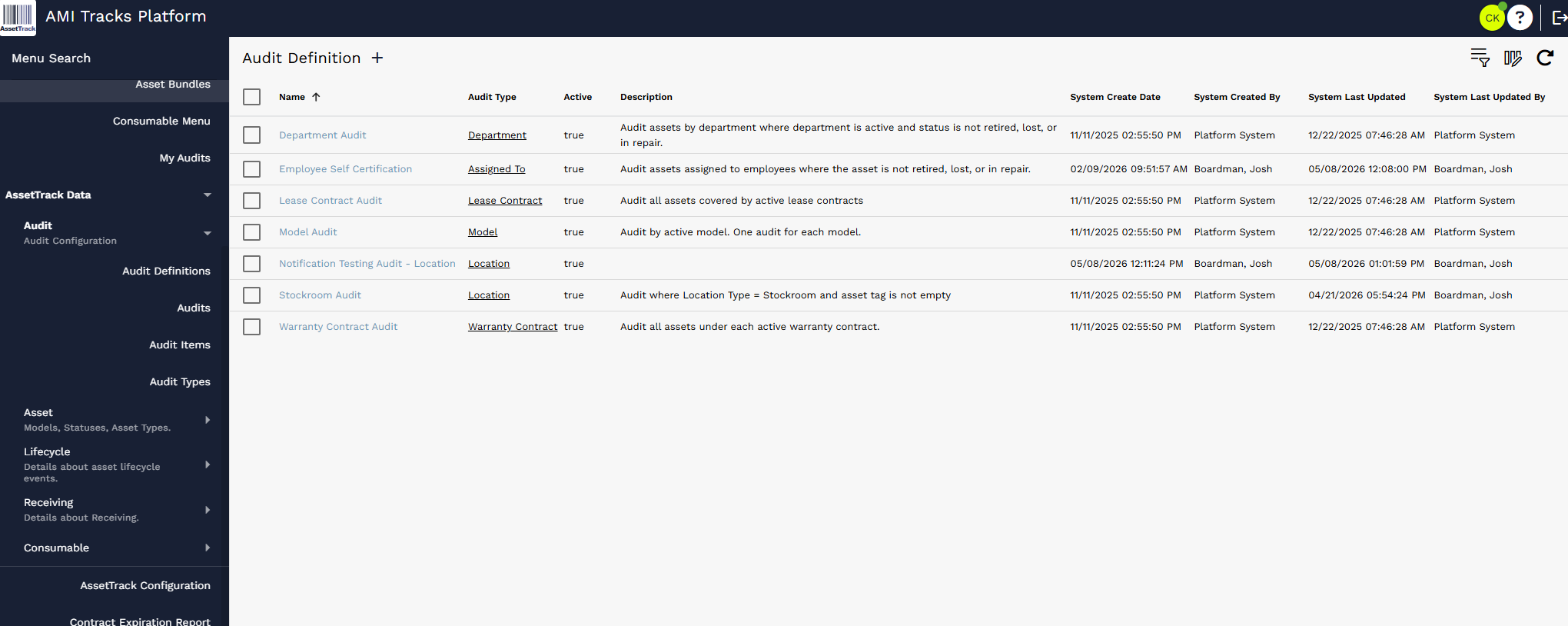
Audit Definitions list used to create or open audit definitions.
¶ Create or Select an Audit Definition
To create a new definition, use the plus icon on the Audit Definition list. First, give the definition a name. The generated audit names will include this definition name, so use something descriptive and recognizable.
Next, select the Audit Type. The Audit Type is the asset field being audited. Location and Assigned To are the most common audit types. Location is commonly used for stockroom audits. Assigned To is commonly used for self certification audits.
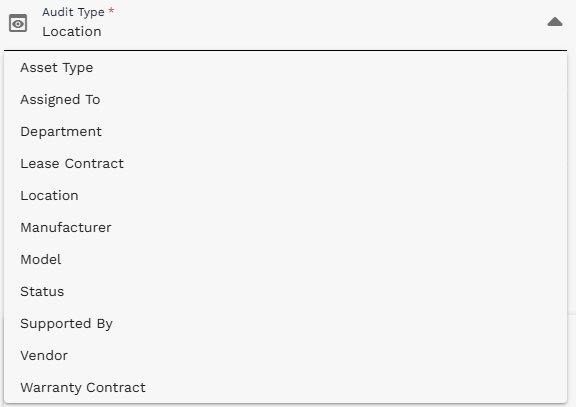
Audit Type dropdown showing common audit type options.
¶ Set Audit Type and Asset Filters
Audit definitions use two filter criteria areas: Audit Type Query and Asset Filter. The Audit Type Query filters records from the selected audit type table. For example, when Audit Type is Location, the Audit Type Query filters location records. The Asset Filter limits which assets are included in the generated audits.
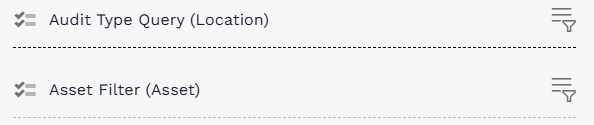
Audit Type Query and Asset Filter fields on the Audit Definition form.
In this example, the definition is set to Audit Type = Location. The Audit Type Query is configured to match two stockroom locations. Because two locations match, the definition will generate two audits.
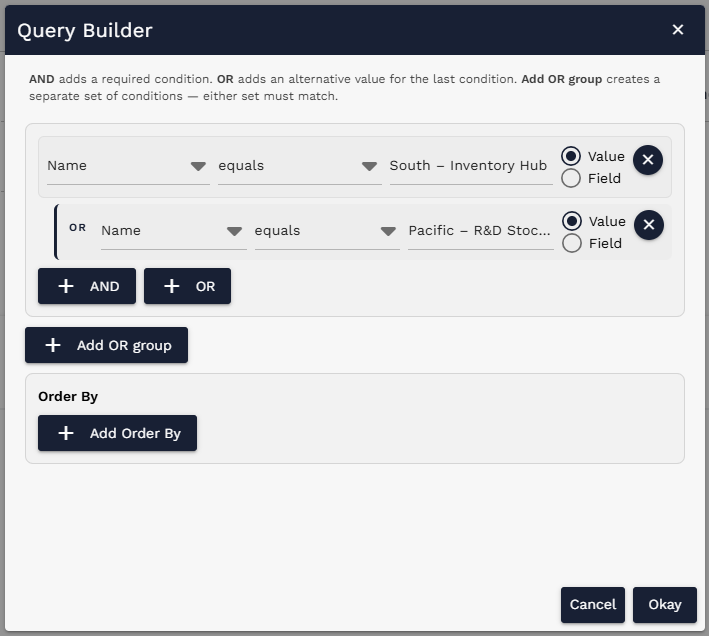
Audit Type Query example matching two stockroom locations.
The Asset Filter is set to Status equals In Stock so the generated audits only include assets that are currently in stock.
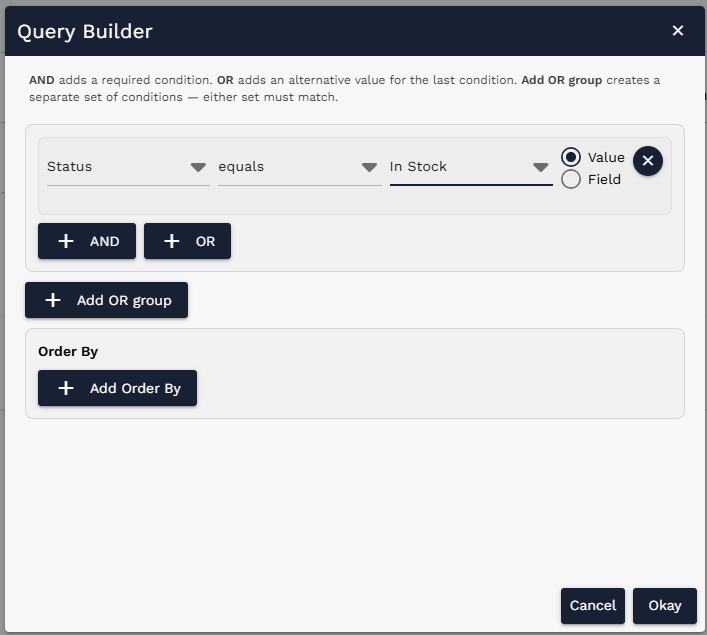
Asset Filter example limiting audited assets to Status equals In Stock.
¶ Add Description and Assignee Information
The Description field can be used to explain the purpose of the definition. This description gives context to users reviewing or maintaining the definition; it is not used for audit logic.
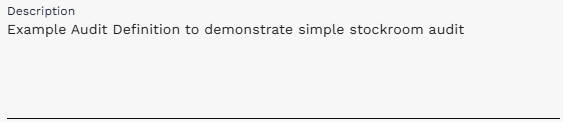
Description field on an audit definition.
Assignee Type designates who will be assigned to perform generated audits. Available options include Person, Group, and Self-certification. When Person or Group is selected, a related reference field appears so a specific person or group can be selected.
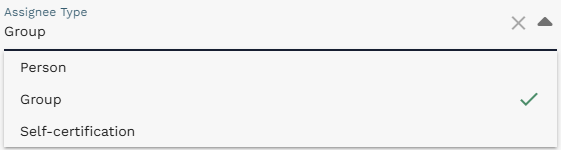
Assignee Type dropdown.
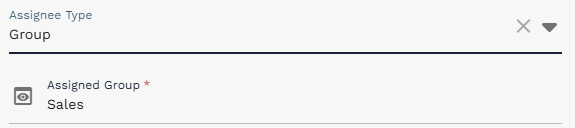
Assigned Group shown after Group is selected.
Email notifications: Depending on AssetTrack Configuration settings and user record email availability, assigned users or groups may receive email notifications when audits are started.
¶ Save and Generate Audits
After the definition fields are complete, save the audit definition. Once the definition is configured as desired, select Generate Audits. AssetTrack creates one audit for each audit type record that matches the Audit Type Query.
Generate Audits button on the Audit Definition form.
In the example, the Audit Type is Location and the query matches two locations, so two audits are generated. The generated audits appear in the Audits list at the bottom of the definition in Draft status.

Generated audits shown in Draft status on the Audit Definition form.
¶ Starting Generated Audits
Generated audits begin in Draft status. To make audits available for scanning, select one or more generated audits using the select boxes, then select Start Selected. Starting an audit changes its status to In Progress.
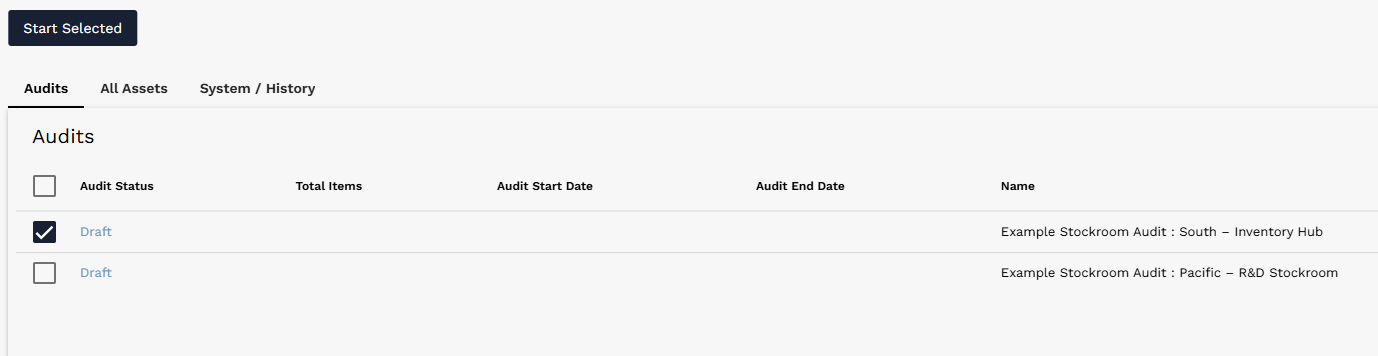
Start Selected button used to start one or more generated audits.
Status requirement: Only audits in In Progress status can be selected and performed from the Audit Scanning page.
Users can also open an individual audit record and start the audit from that interface. The audit record contains details such as Audit Name, Audit Status, Audit Start Date, Audit End Date, description, and audit progress.

Individual Audit record with Start Audit and Calculate Totals controls.
¶ Performing Audits on the Audit Scanning Page
Navigate to Audit Scanning in AssetTrack. The most recently generated audit available to the user may populate automatically. If necessary, use the Audit reference field dropdown to change the audit, or select the magnifying glass next to the Audit field to open the Audit Search dialog.
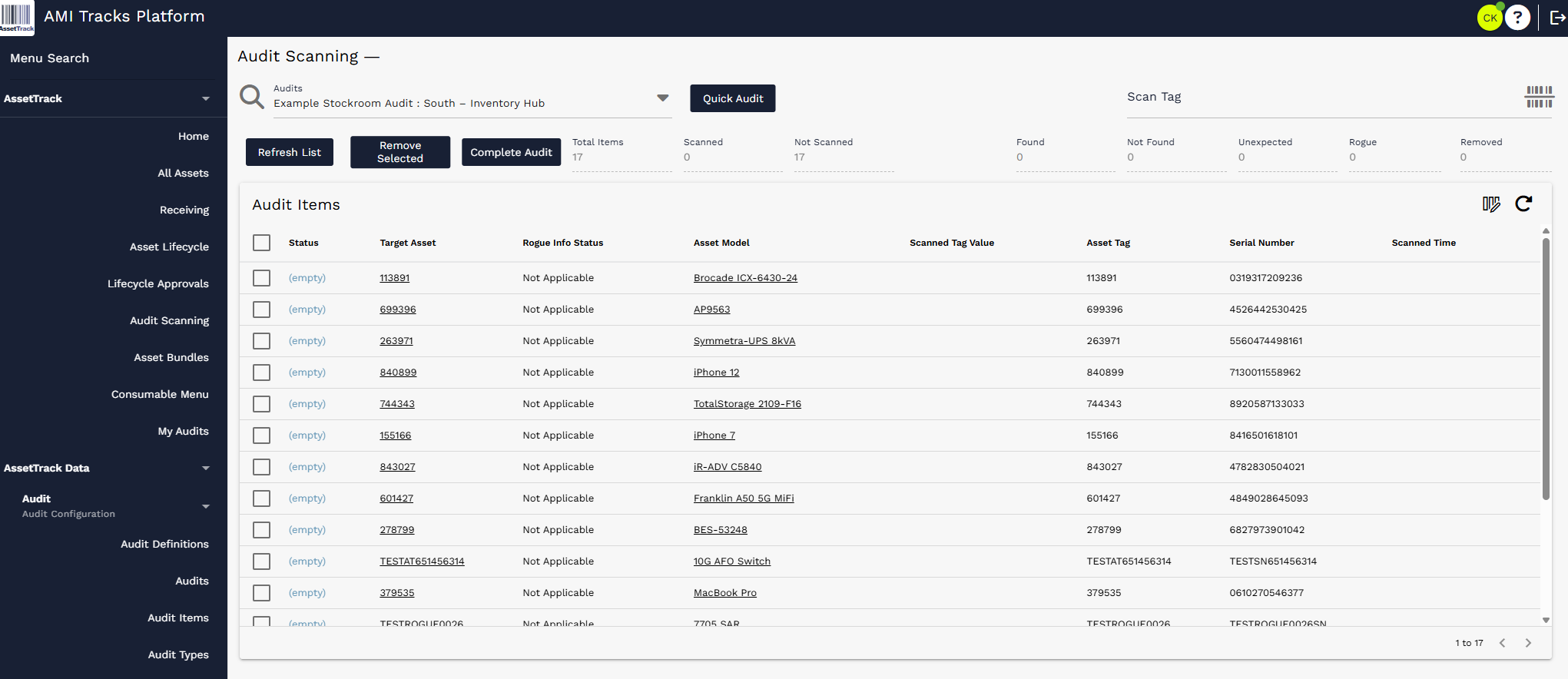
Audit Scanning page with an audit selected, scan controls, totals, and audit items.
The Audit Search dialog allows users to find an audit by definition or type. Once the correct audit is found, select the row to begin auditing. Only In Progress audits can be selected.
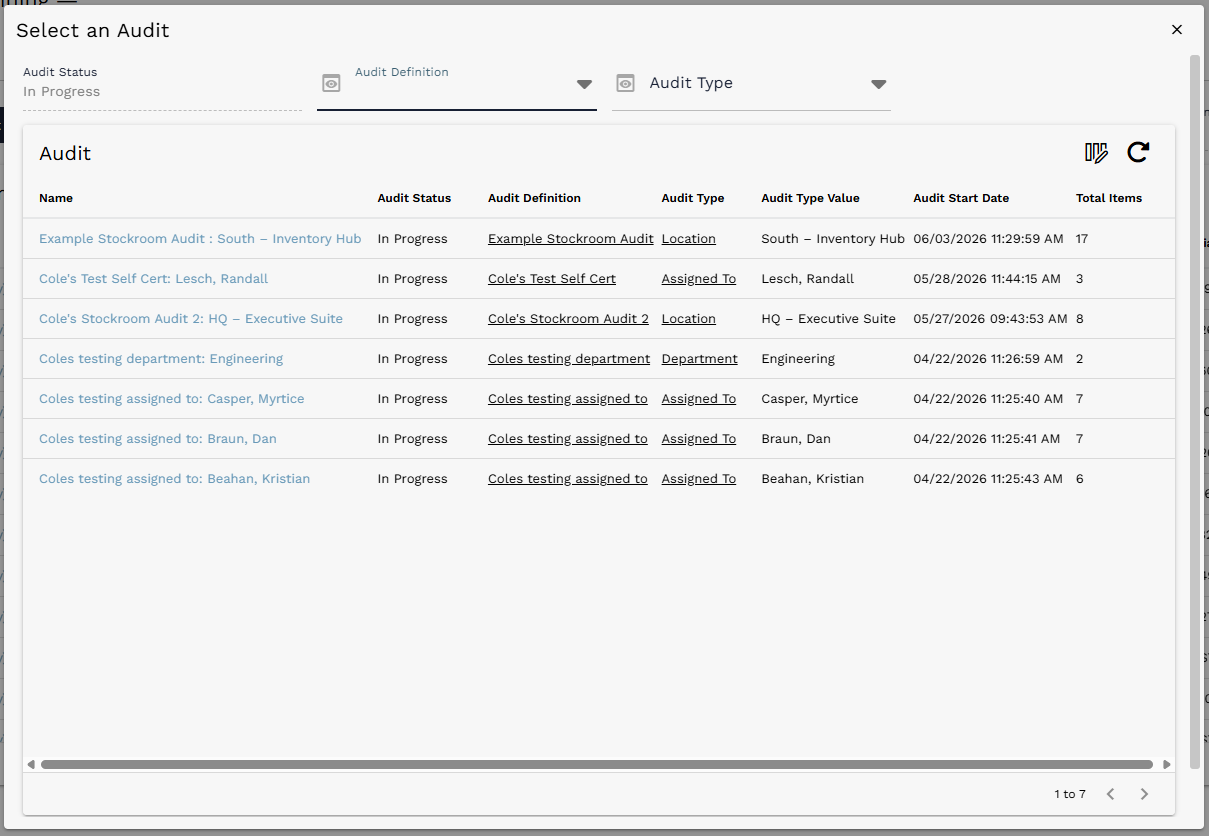
Audit Search dialog used to choose an In Progress audit.
After the audit is selected, the Audit Items list shows the assets included in the audit. At the beginning of the audit, most generated audit items will have Status = (empty). Status values update as assets are scanned and as the audit is completed.
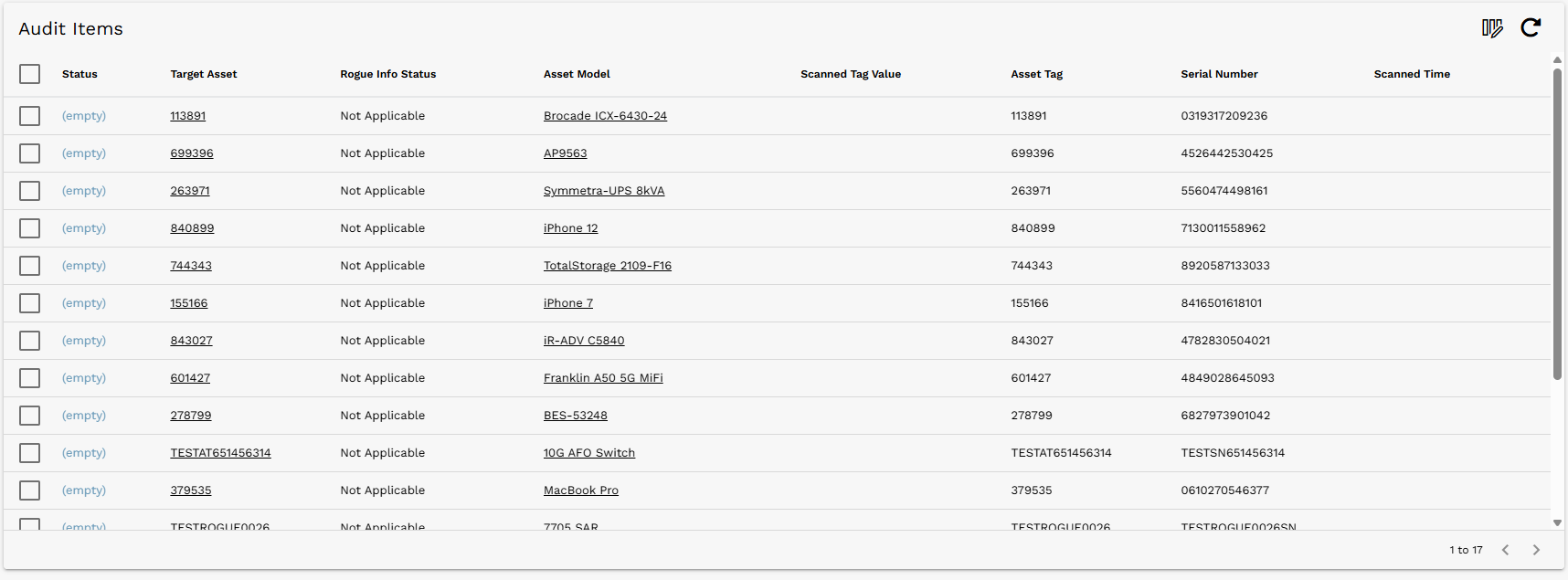
Audit Items list at the beginning of an audit.
The tracking fields at the top of the page summarize audit progress: Total Items, Scanned, Not Scanned, Found, Not Found, Unexpected, Rogue, and Removed. These values update as the audit progresses.

Audit quantity tracking fields that update during the audit.
¶ Audit Items and Audit Item Statuses
An Audit Item is a record that represents an asset being included in an audit. Audit Items allow AssetTrack to associate audit results with assets without immediately changing the asset records directly. They also provide historical evidence of when and where assets were audited over time.
Most Audit Items are generated when an audit is started. Some Audit Items, such as Unexpected and Rogue items, are created during audit scanning when a scanned tag does not match the expected audit population.
| Audit Item status | Meaning |
|---|---|
| (empty) | A new Audit Item where no scan action has been taken yet. |
| Found | An asset was expected to be in the audit and was scanned or found during it. |
| Unexpected | An asset was not expected to be found during the audit, but it exists in AssetTrack and was scanned. |
| Rogue | An asset was not expected to be found during the audit and AssetTrack has no current record of the asset. |
| Not Found | An asset was expected to be found, but was never scanned before the audit was completed. |
¶ Scanning Expected, Unexpected, and Rogue Assets
To scan assets, type or paste an Asset Tag or Serial Number into the Scan Tag field and press Enter. Users can also select the barcode icon to scan using a mobile camera or a desktop plug-in scanner.

Scan Tag field with an asset tag entered manually.
When expected assets are scanned, existing Audit Items update from (empty) to Found. The Scanned, Not Scanned, and Found totals also update as scanning progresses.
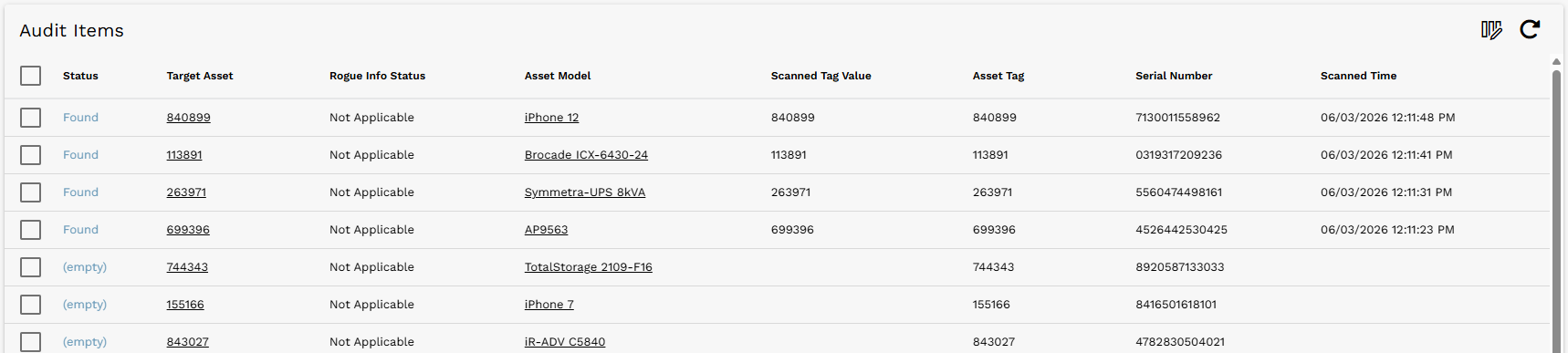
Audit Items updated to Found after expected assets are scanned.
¶ Unexpected Assets
If a scanned asset exists in AssetTrack but was not expected in the audit, AssetTrack creates a new Audit Item with Status = Unexpected. This provides a record that the asset was found during the audit even though it was not part of the expected population.

Unexpected Audit Item added to the top of the Audit Items list.
¶ Rogue Assets
If a scanned asset is not expected and AssetTrack does not have an existing record for the scanned tag, AssetTrack creates a new Rogue Audit Item. Because the asset is new to the system, additional information may be required before the audit can be completed.

Rogue Audit Item added with Rogue Info Status set to Requires Info.
Open the Rogue Audit Item to provide Rogue Asset Info. The dialog allows users to enter asset details such as Asset Tag, Serial Number, Status, Location, Assigned To, Model, Asset Type, Manufacturer, and other fields. Asset Tag or Serial Number is required so the new asset has a unique identifier.
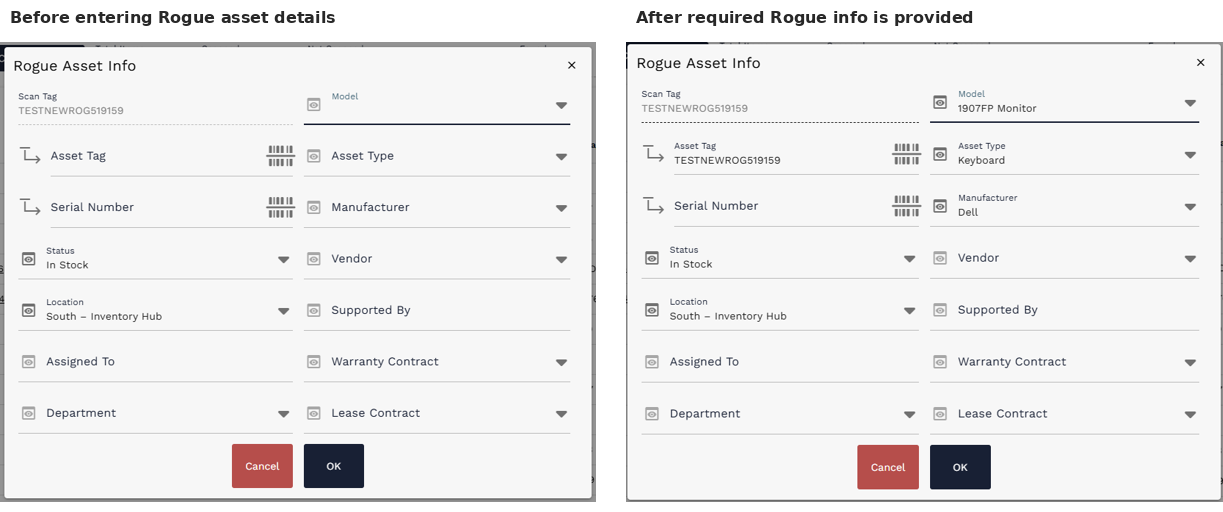
Rogue Asset Info dialog before and after required information is provided.
After the required rogue asset information is provided and the user selects OK, the Rogue Info Status changes to Info Provided. At that point, the rogue item is ready to be processed when the audit is completed.
¶ Completing an Audit
After all available assets at the audited location or assignment have been scanned, select Complete Audit. Completing an audit can take time, especially for larger audits, because AssetTrack creates and updates related records as part of the completion process.
Complete Audit button on the Audit Scanning page.
If the audit contains rogue assets that still require information, the user may receive a message stating that the audit failed to complete. Whether rogue assets block audit completion is controlled by AssetTrack settings. When blocking is enabled, users must provide the required rogue information before closing the audit.

Failed completion message when rogue assets still require information.
Once the audit is completed, any Audit Items that still have Status = (empty) are changed to Not Found. The audit totals update to reflect final Found, Not Found, Unexpected, Rogue, and Removed counts.
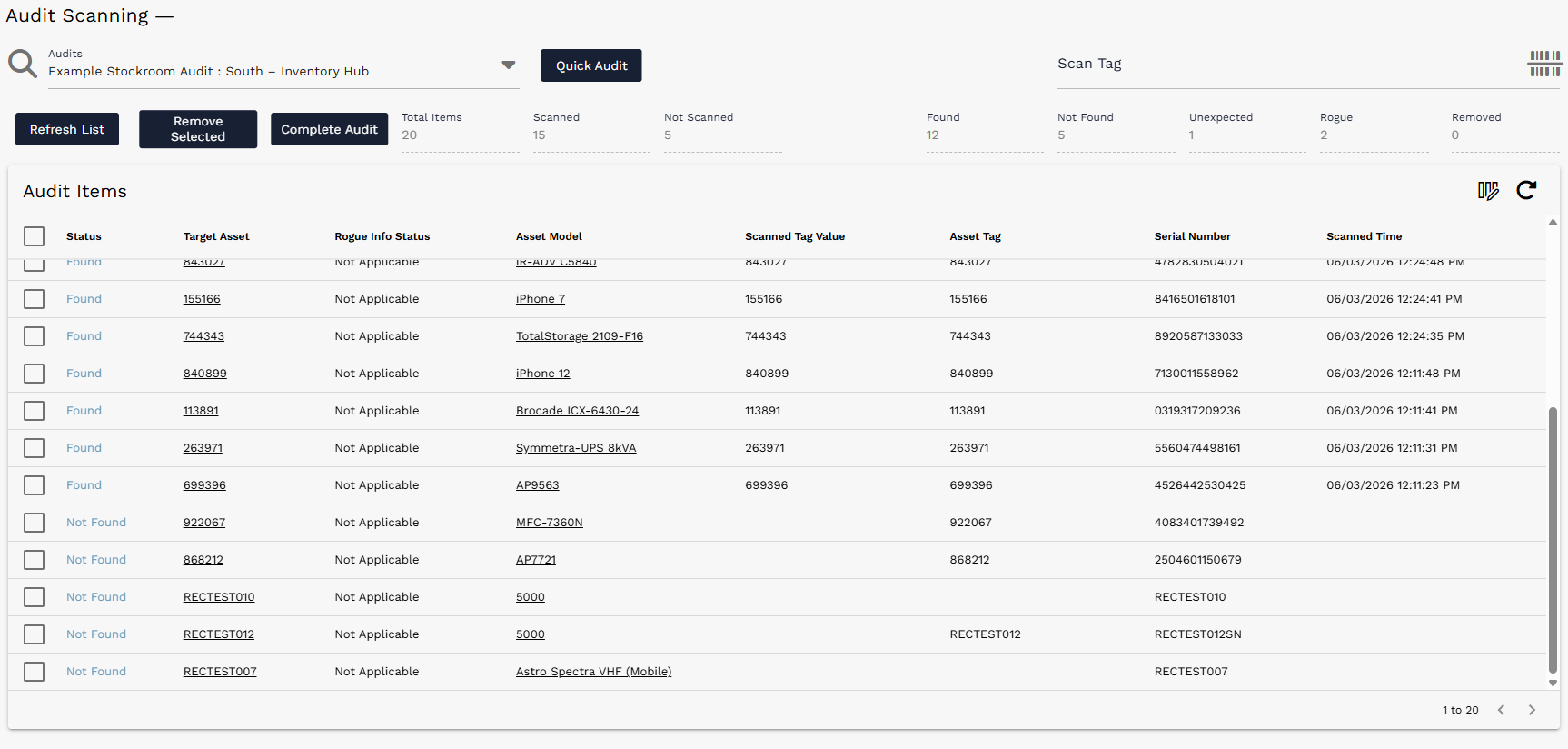
Completed audit view showing updated totals and final audit item statuses.
¶ Audit Results, Lifecycle Events, and Approvals
Audit results can create lifecycle events that change asset data. Unexpected, Rogue, and Not Found Audit Items are the most important cases because they represent data discrepancies discovered during the audit.
The system is smart enough to populate pertinent information where it makes sense. For example, if an audit is performed at Stockroom X and a Rogue or Unexpected item is found, the location on that asset can be updated to Stockroom X. Similarly, if an audit is performed at Stockroom X and an expected asset is not found, the location field on that asset can be cleared and the asset status can be changed to Missing.
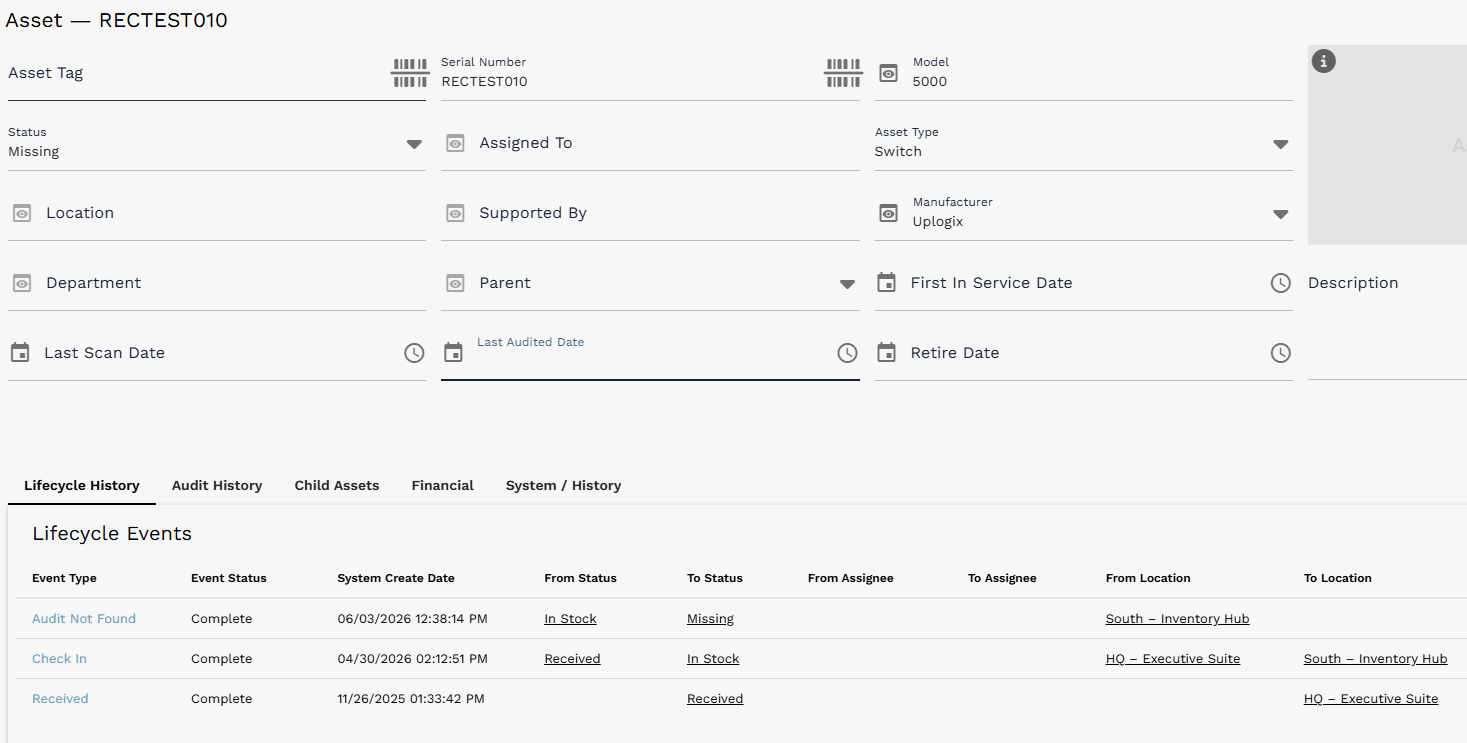
Asset record showing Audit History after an audit item is created.
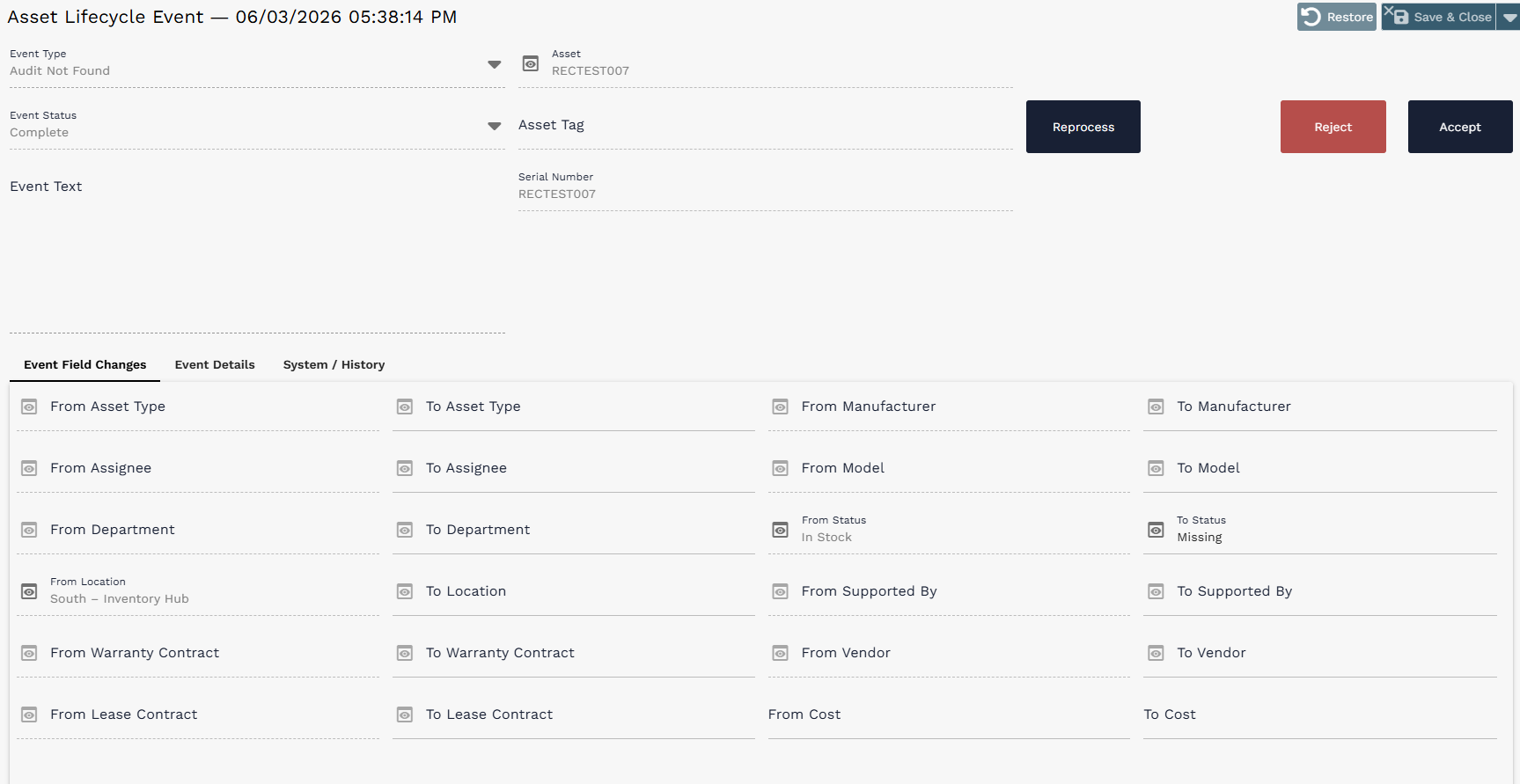
Audit Not Found lifecycle event showing asset data changes from audit completion.
¶ Lifecycle Event Types Created from Audit Results
| Audit Item result | Lifecycle Event type |
|---|---|
| Unexpected | Audit Data Correction |
| Rogue | Audit Asset Creation (Rogue) |
| Not Found | Audit Not Found |
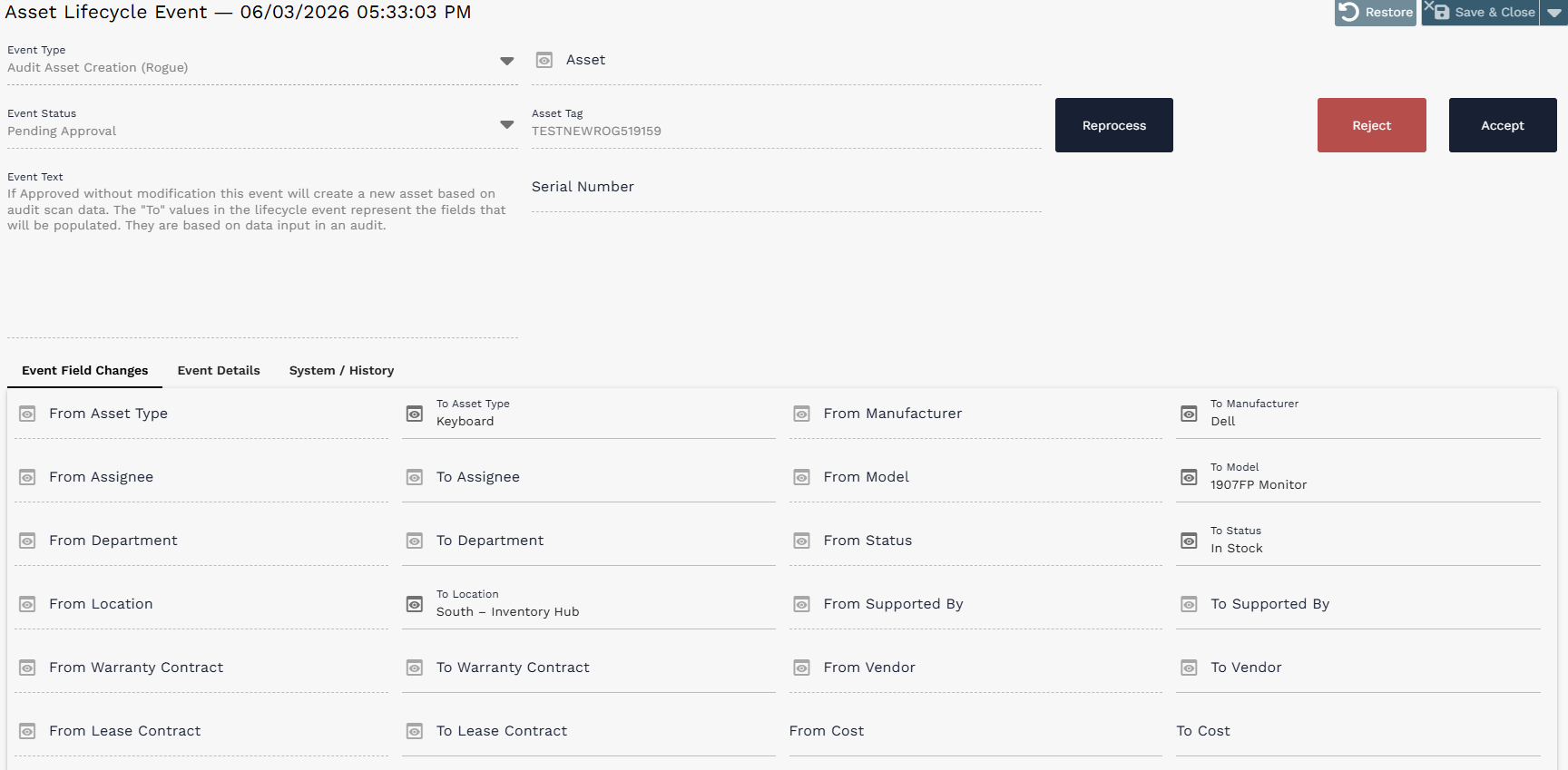
Audit Asset Creation (Rogue) lifecycle event.
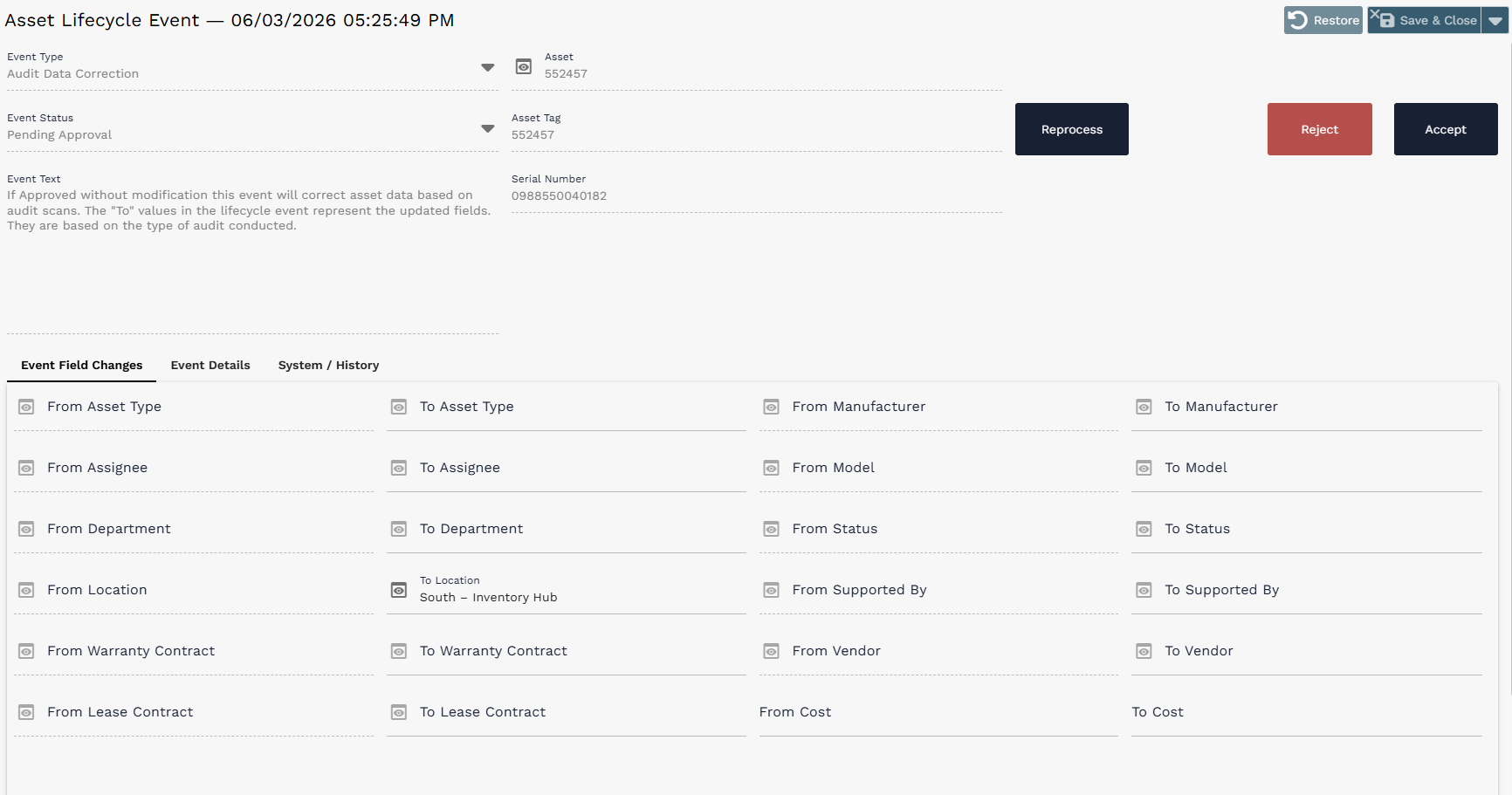
Audit Data Correction lifecycle event.
Approval configuration: Some audit-driven lifecycle events may require AssetTrack Manager approval before they change asset records. Whether Unexpected, Rogue, or Not Found lifecycle events require approval is configured in the AssetTrack Configuration list. Out of the box, Rogue and Unexpected audit changes require manager approval before being applied, while Not Found changes do not require approval.
¶ Quick Reference
| Task | Key action |
|---|---|
| Generate audits | Create or open an Audit Definition, set Audit Type, configure Audit Type Query and Asset Filter, assign a person/group/self-certification, save, then select Generate Audits. |
| Start audits | Select one or more generated Draft audits and select Start Selected. Started audits move to In Progress. |
| Perform audits | Open Audit Scanning, select an In Progress audit, then scan Asset Tags or Serial Numbers into the Scan Tag field. |
| Handle expected assets | Expected assets update their Audit Items to Found when scanned. |
| Handle unexpected assets | Unexpected scans create new Unexpected Audit Items. |
| Handle rogue assets | Rogue scans create new Rogue Audit Items. Provide required Rogue Asset Info before completing when required by configuration. |
| Complete audit | Select Complete Audit. Remaining empty Audit Items become Not Found, and audit-driven lifecycle events may be created. |