¶ Dashboards
Standalone Training Guide
Version: 20260605
This guide explains the dashboards available in AssetTrack, how dashboards act as landing pages, how charts and dashboard controls are used, and what each current dashboard is designed to support.
¶ Contents
- Dashboard Overview
- Choosing a Default Dashboard
- Interactive Charts and Dashboard Controls
- AssetTrack Manager Dashboard
- AssetTrack User Dashboard
- Self Certification Dashboard
- Quick Reference
Related guides: This document focuses only on dashboards. Detailed workflows for lists, forms, lifecycle actions, consumables, audits, and approvals are covered in their own standalone guides.
¶ Dashboard Overview
Dashboards serve as the primary landing pages for the Pillar Platform. A dashboard combines charts, lists, filters, and buttons so users can monitor key information and navigate quickly to the parts of AssetTrack they use most often.
AssetTrack currently includes three primary dashboards: AssetTrack Manager, AssetTrack User, and Self Certification.
| Dashboard | Primary audience | Purpose |
|---|---|---|
| AssetTrack Manager | Users with the AssetTrack Manager role | Monitor instance health, approvals, audits, lifecycle activity, asset categories, and quick action links. |
| AssetTrack User | Users with the AssetTrack User role | Provide a streamlined landing page focused on common operational actions: Receiving, Lifecycle, Audit, and Consumables. |
| Self Certification | Users who do not primarily work in a stockroom or directly manage assets | Provide a simple interface for users to perform self audits of assets assigned to them. |
¶ Choosing a Default Dashboard
Users can change their favorited dashboard, which is the dashboard they see when they log in, by accessing user settings from the top-right user menu and changing the Default Dashboard field.

Default Dashboard setting used to choose the dashboard shown at login.
¶ Interactive Charts and Dashboard Controls
Dashboard charts are interactive. Users can select chart segments, bars, or points to filter results or drill down into the underlying data represented by the chart. Some charts also display hover information that identifies the selected grouping or value.
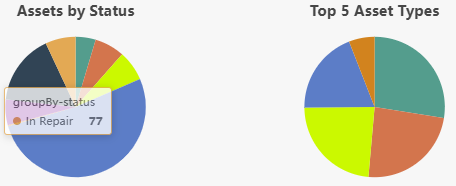
Interactive asset charts showing asset status and top asset type breakdowns.
¶ AssetTrack Manager Dashboard
The AssetTrack Manager dashboard is designed for users with the AssetTrack Manager role. It gives managers a high-level view of instance health, pending work, audit progress, lifecycle activity, asset distributions, and quick navigation to common management workflows.
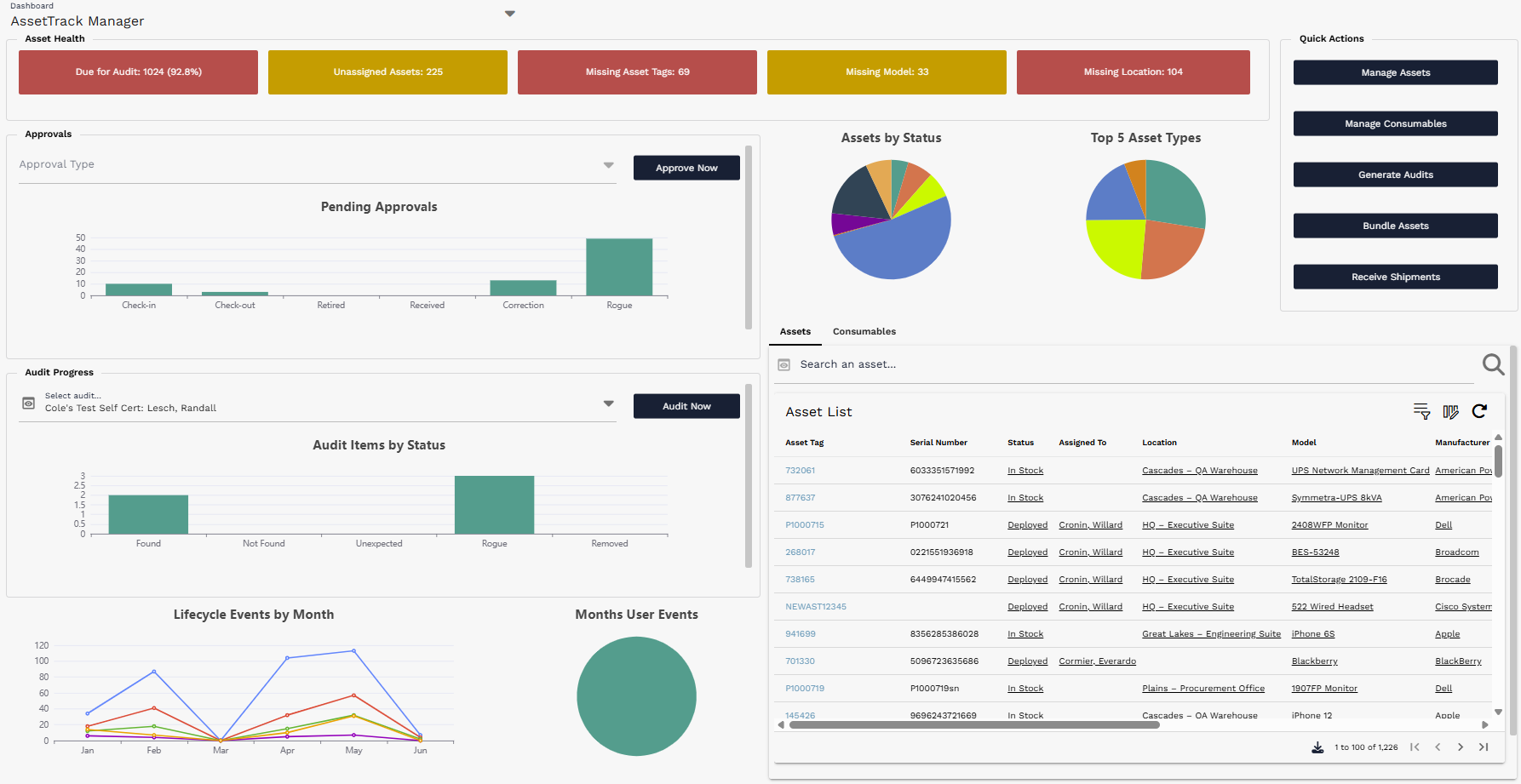
AssetTrack Manager dashboard overview.
¶ Asset Health
The Asset Health section highlights key indicators of overall asset health, including audit readiness and missing data levels. The buttons use the system Positive, Warning, and Negative colors so managers can quickly understand health levels at a glance.
The thresholds that determine when these buttons change to Warning or Negative can be configured in the AssetTrack Configuration list by AssetTrack Managers.

Asset Health indicators showing audit readiness and missing-data levels.
¶ Approvals
The Approvals section gives managers a quick overview of outstanding approvals that may require their attention. Selecting Approve Now navigates the user to the Lifecycle Approval interface.
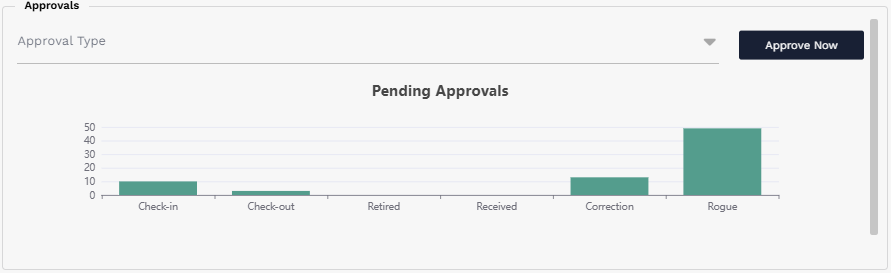
Approvals section showing pending approvals by approval type.
¶ Audit Progress
The Audit Progress section lets managers quickly view results for an in-progress audit. Results are broken down by Audit Item status, including Found, Not Found, Unexpected, Rogue, and Removed. Selecting Audit Now opens the currently selected audit so the user can continue or perform the audit.
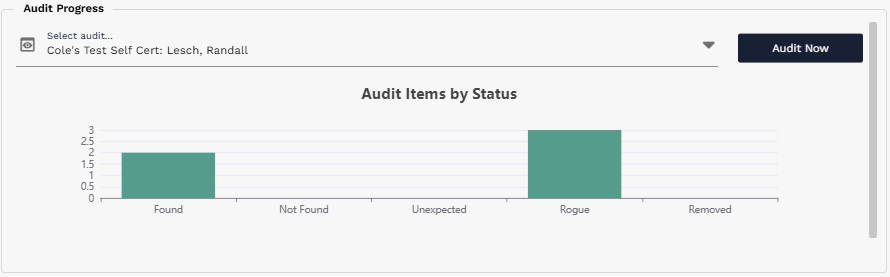
Audit Progress section showing audit item statuses for the selected audit.
¶ Lifecycle and Asset Charts
Lifecycle Events by Month and Month's User Events provide insight into lifecycle event frequency, lifecycle volume, and which users are performing lifecycle events. Assets by Status and Top Asset Types provide a quick breakdown of asset categories and statuses across the system.
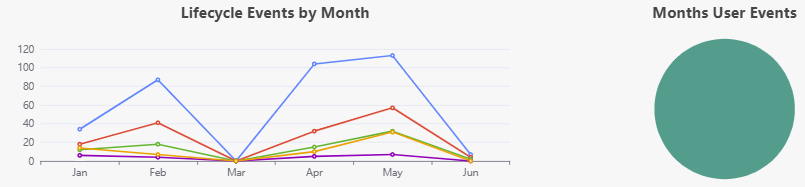
Lifecycle activity charts showing lifecycle event counts and user activity.
Asset breakdown charts for Assets by Status and Top Asset Types.
¶ Quick Actions and Embedded Lists
The Quick Actions panel provides shortcut navigation to important interfaces, including Manage Assets, Manage Consumables, Generate Audits, Bundle Assets, and Receive Shipments.
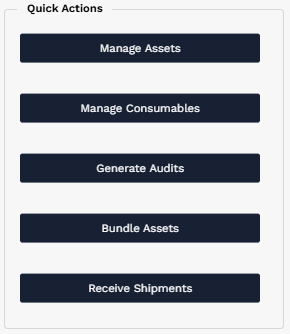
Quick Actions panel on the AssetTrack Manager dashboard.
Embedded lists at the bottom right let users find specific assets or consumables without leaving the dashboard. The lists support normal list controls such as query, column selection, refresh, sorting, pagination, and opening records.
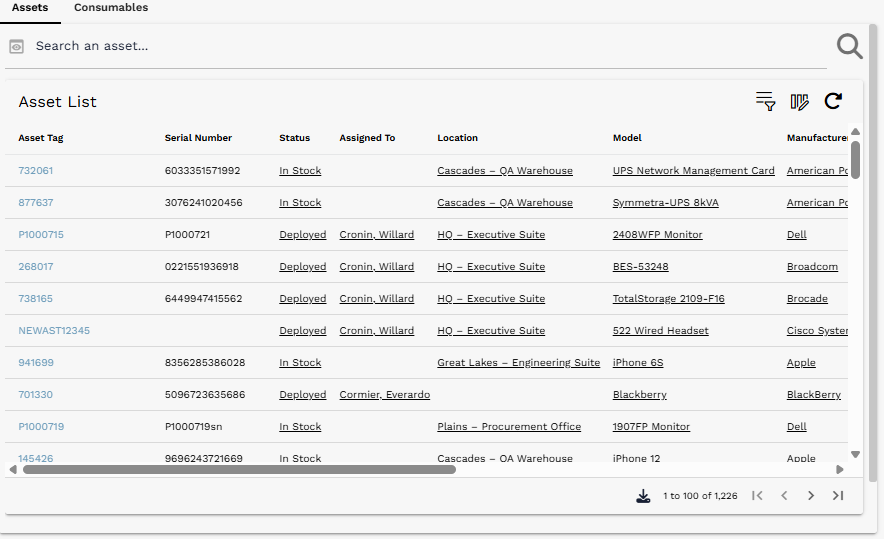
Embedded Asset List on the AssetTrack Manager dashboard.
¶ AssetTrack User Dashboard
The AssetTrack User dashboard is intended for users with the AssetTrack User role. It is a pared-down version of the manager dashboard and omits management-focused sections such as Asset Health and Approvals.
This dashboard centers on four common actions: Receiving, Lifecycle, Audit, and Consumables. Each action area has its own section with a chart, a controlling field used to filter the chart, and a call-to-action button that opens the related interface or form.
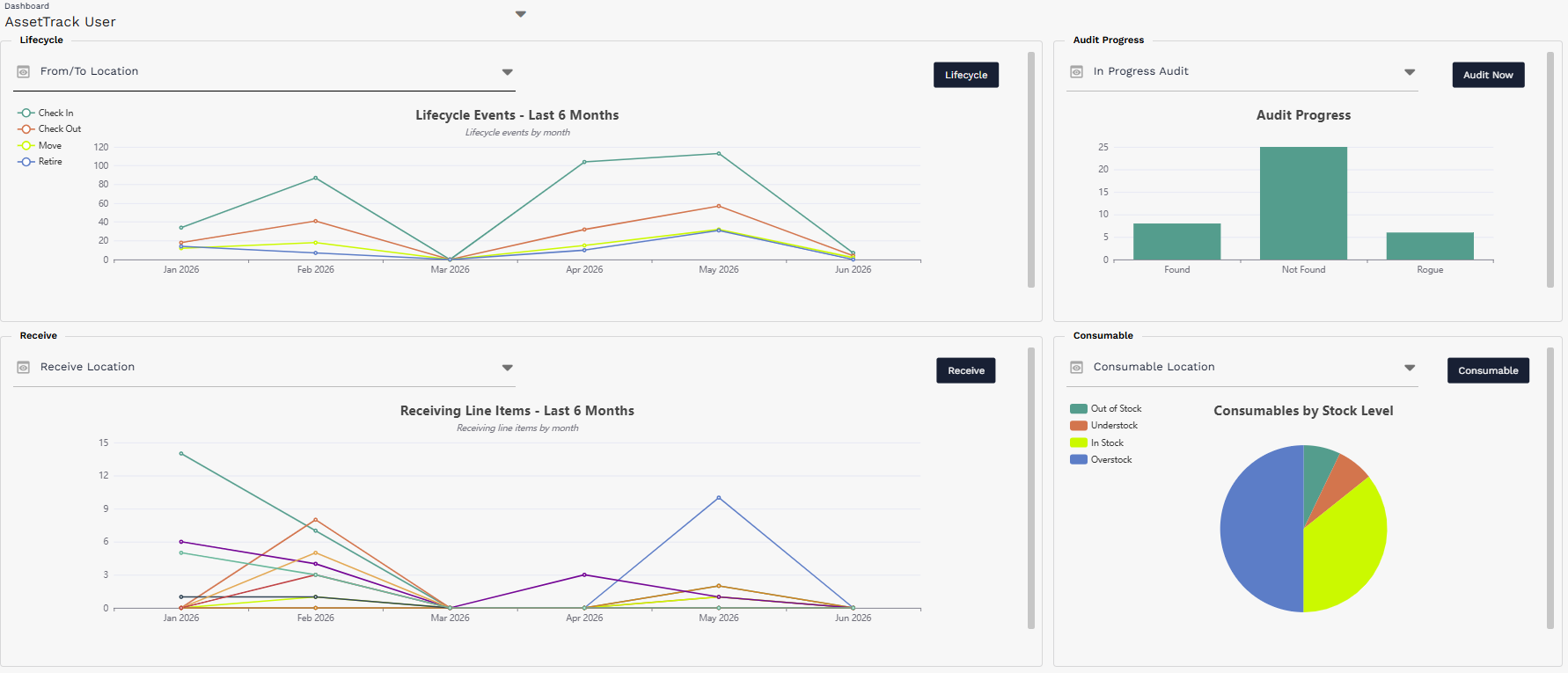
AssetTrack User dashboard overview.
¶ Lifecycle
The Lifecycle section includes a From/To Location filter, a lifecycle events chart, and a Lifecycle button that takes the user to the lifecycle action interface.
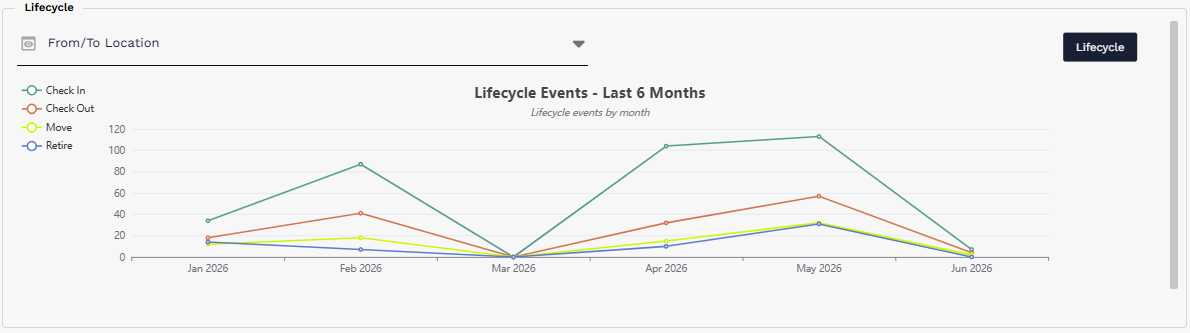
Lifecycle section with From/To Location filter, lifecycle chart, and Lifecycle action button.
¶ Receive
The Receive section includes a Receive Location field, receiving activity chart, and Receive button that opens the receiving workflow.
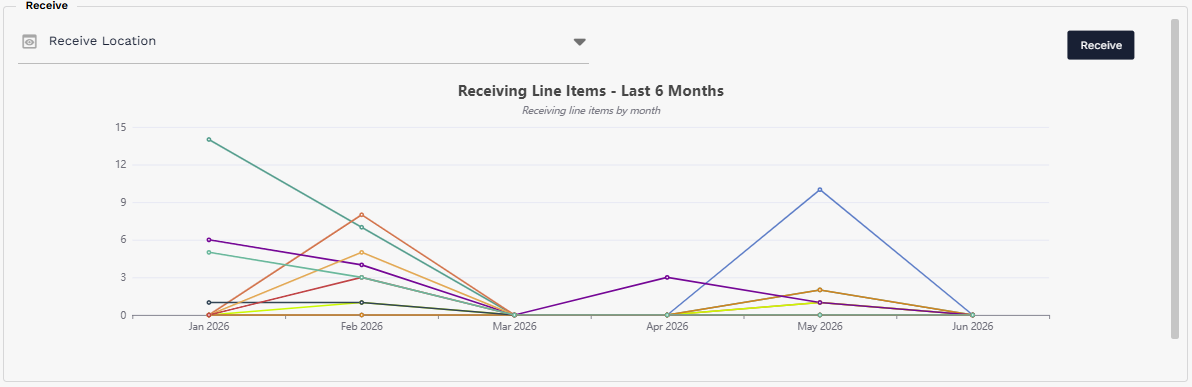
Receive section with Receive Location filter, receiving chart, and Receive action button.
¶ Audit Progress
The Audit Progress section lets the user select an in-progress audit, view the audit progress chart, and use Audit Now to continue auditing.
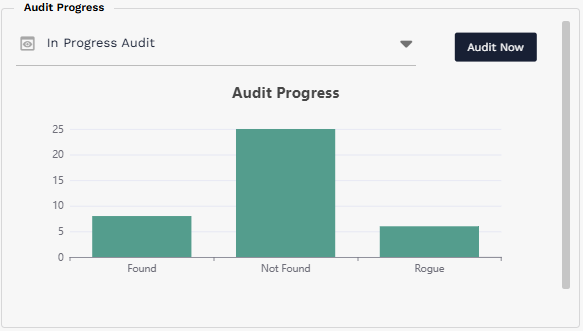
Audit Progress section with selected audit, audit progress chart, and Audit Now button.
¶ Consumable
The Consumable section includes a Consumable Location filter, a stock-level chart, and a Consumable button that opens the consumable interface.
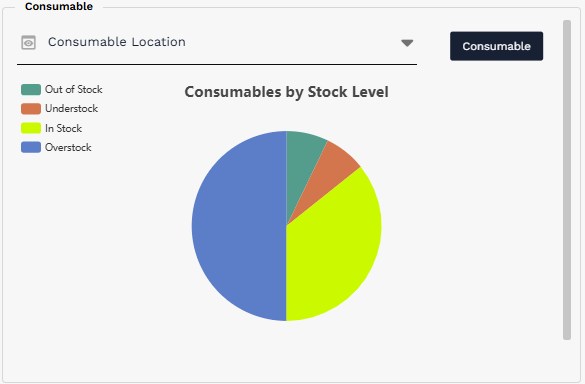
Consumable section with location filter, stock-level chart, and Consumable action button.
¶ Self Certification Dashboard
The Self Certification dashboard is designed for users who do not primarily work in a stockroom or directly manage assets. Unlike the other dashboards, it does not focus on charts or analytics. Instead, it provides a simple interface for users to perform self audits of assets assigned to them.
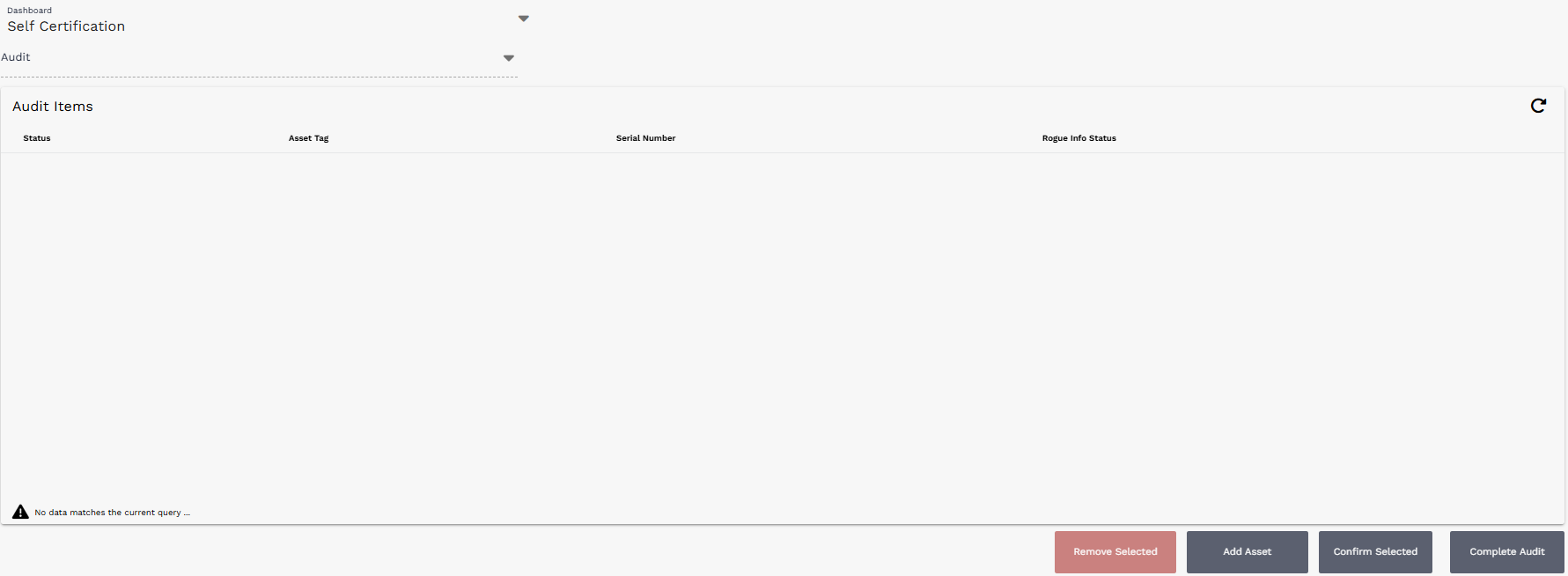
Self Certification dashboard used for self-auditing assigned assets.
¶ Quick Reference
| Question | Answer |
|---|---|
| Where do users land after login? | On their Default Dashboard. |
| How do users change their login dashboard? | Open user settings and change Default Dashboard. |
| Are charts clickable? | Yes. Charts are interactive and may filter or drill into the underlying data. |
| Who uses AssetTrack Manager? | Users with the AssetTrack Manager role. |
| Who uses AssetTrack User? | Operational users who primarily perform receiving, lifecycle, audit, or consumable work. |
| Who uses Self Certification? | Users who need to self-audit assets assigned to them. |
Final note: Dashboards are intended to get users to the right work quickly. When a user needs detailed step-by-step instructions, refer them to the focused standalone guide for that workflow.